

Follow one project from meeting preparation to a checked workbook and an organised project notebook. Each workflow sets out what you need, the steps, and what to verify.
For everyday Microsoft 365 users and adoption leads.
Outlook · Excel · Copilot Notebooks
Quick summary
- Outlook: prepare for a meeting with a Copilot brief, then check it against its references.
- Excel: follow Copilot’s links to changes and use Show Changes to identify supported cell edits made with Copilot. Inspect formatting and objects separately.
- Copilot Notebooks: gather files, emails and meetings in one place and draft a brief from them.
The example project
To keep things concrete, we follow one project through all three apps, using Microsoft’s own demonstration scenario: a Project Synergy review meeting about bringing AI tools into a supply chain. Fourth Coffee and Contoso are Microsoft’s fictional demo companies. The workflow applies to other projects; controls and availability can vary by app, licence and rollout.
Workflow 1: Outlook. Arrive with the context
Copilot pulls together relevant context, tasks, documents and resources for an upcoming meeting, and lets you chat with it about the meeting before you join.
What you need
- A Microsoft 365 Copilot licence.
- Meeting Insights turned on by your admin: Microsoft 365 admin center, Search & Intelligence, Configurations, Manage Meeting Insights settings.
- Outlook on the web, new Outlook for Windows, Outlook for Mac, Outlook mobile or Teams. Microsoft’s August 2026 release notes added meeting preparation to classic Outlook for Windows.
Steps
- Open your calendar and open the meeting.
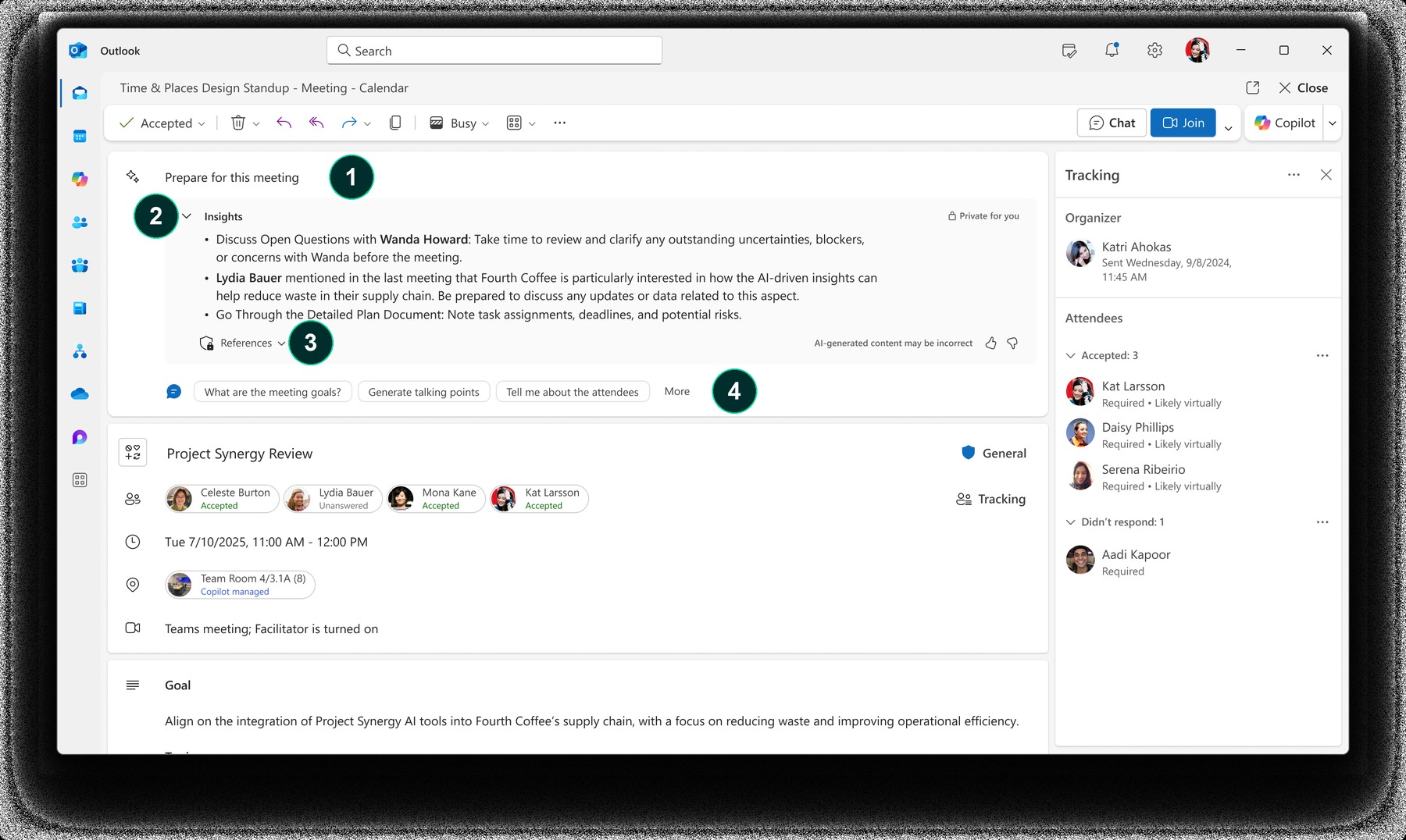
- Read the preparation content at the top of the event. Select Show more for further insights, or choose a suggested prompt.
- Or select Prepare for this meeting to start a chat with Copilot about the meeting.
- Open References to see which emails, files and chats the brief drew on.
Open image at full size
- Prepare for this meeting: the preparation panel at the top of the event.
- Insights: open questions, earlier discussion and documents to review.
- References: the sources behind the brief. Check these.
- Suggested prompts: for example meeting goals, talking points or attendees.
Example prompt
What decisions do we need from this meeting, and what is still open from the last one? List the source for each point.
What to verify
- Each point against its reference. The panel itself notes that AI-generated content may be incorrect.
- Summaries are personalised to what you can access, so colleagues may see different points.
- Insights appear for one-to-one meetings or meetings with related shared content; with little related material, the brief may be generic.
Workflow 2: Excel. See what Copilot changed
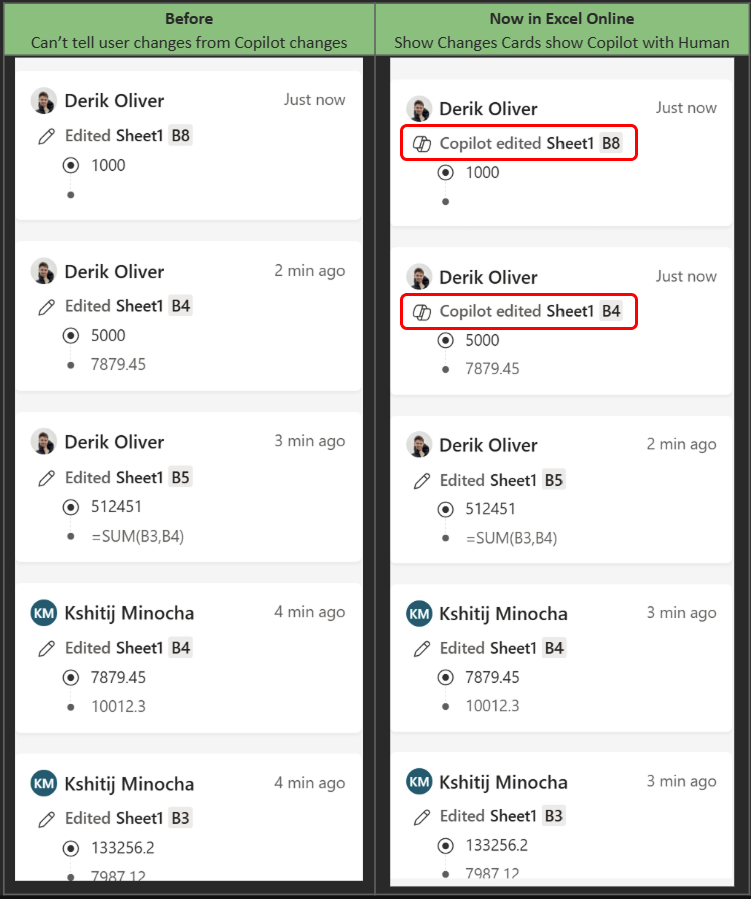
When Copilot edits a workbook, the links in its reply take you to the new or changed sheets, tables, ranges, charts and shapes. Show Changes now flags edits made with Copilot, so collaborators can tell them apart from people’s edits.
What you need
- A Microsoft 365 Copilot licence.
- A workbook saved in OneDrive or SharePoint Online, opened in a supported co-authoring version of Excel while signed in. Turn on AutoSave for the shared-workbook workflow; SharePoint on-premises does not support this setup.
- Excel for Windows, Mac or the web. Copilot attribution in Show Changes appeared first in Excel for the web (May 2026); Microsoft’s 23 September 2026 release notes list it, and the change links, for Windows, Mac and the web.
Steps
- Ask Copilot to make a change, for example add a calculated column or build a summary table.
- In Copilot’s reply, select the links to jump to each change.
- Open Review, then Show Changes.
- Look for cards marked Copilot edited, with the sheet and cell.
- Check the values and formulas, then share the workbook.
Open image at full size
Example prompt
Add a column that calculates the variance between budget and actual for each line, and highlight any variance above 10%.
What to verify
- The inputs and formulas, not only the results.
- That Copilot changed only what you asked for.
- Show Changes before you share, so reviewers can identify supported cell-value and formula edits made with Copilot for up to 60 days. It is not a complete audit trail: formatting, chart and shape edits, PivotTable operations, and filtering or hiding changes are not all shown. Inspect the requested highlighting and other visual changes directly; use Version History for a broader comparison or older versions.
Workflow 3: Copilot Notebooks. Keep the project together
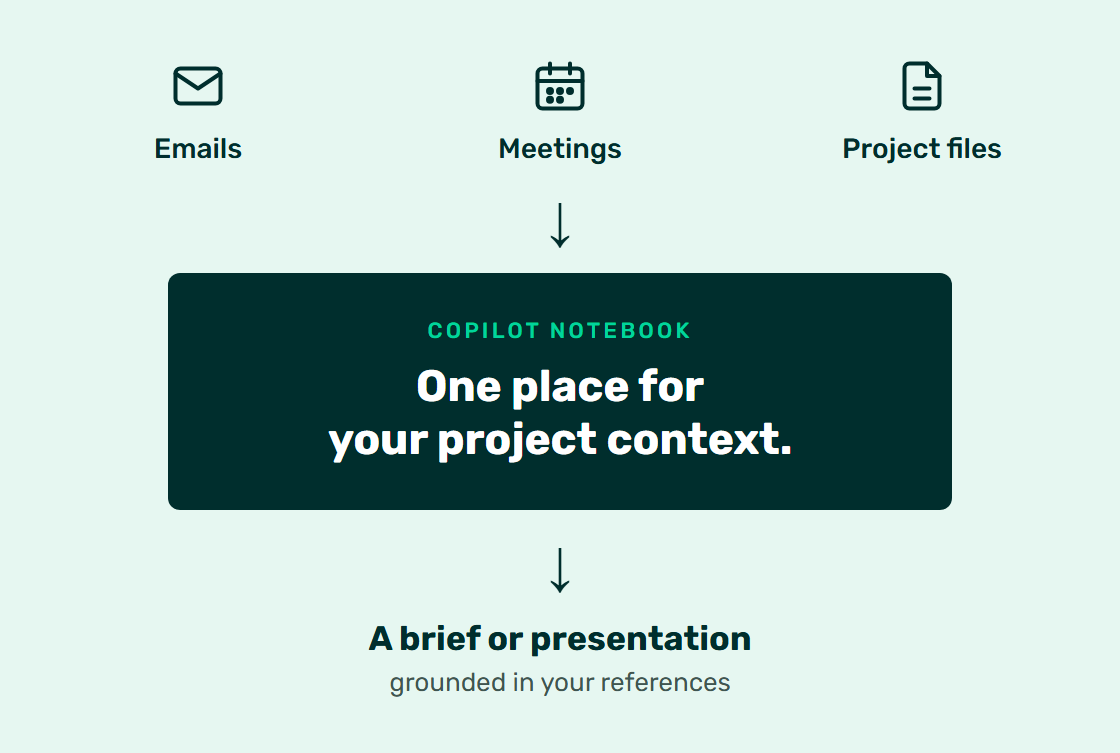
A Copilot Notebook is a workspace where Copilot grounds its answers in references you choose. Unlike a one-off chat, it keeps that context across sessions, so the project brief, the decisions and the sources stay together.
What you need
- For this workflow using organisational references, a Microsoft 365 Copilot licence and a SharePoint or OneDrive service plan, with access through the Microsoft 365 Copilot app or OneNote. Basic Notebooks are also available to eligible Copilot Chat users, but premium organisational references have different access requirements. The refreshed Notebooks experience became generally available in March 2026.
- For email and meeting references: Outlook emails can be added on Windows and the web; Teams meetings on Windows, the web, iOS and Android (August 2026 release notes).
- A redesigned Notebooks experience is rolling out on the web (September 2026 release notes), so your layout may differ from the example.
Steps
- In the Microsoft 365 Copilot app, open Notebooks, then All notebooks, then New notebook. If Notebooks is not visible, find it in the app launcher. Give the notebook a project name.
- Add the initial references under Add content to References, then select Create. To add more later, use Add references at the top of the Content pane; in OneNote, use the plus sign next to References. Choose the project’s Word, PowerPoint and Excel files, PDFs and OneNote pages, plus permitted Outlook emails and Teams meetings where available.
- Ask Copilot for a brief, using the prompt below.
- Check the citations against the references.
- Turn the result into a page or, where available, choose Quick create, then PowerPoint presentation. Review the generated output against the references.
Open image at full size
Open image at full size
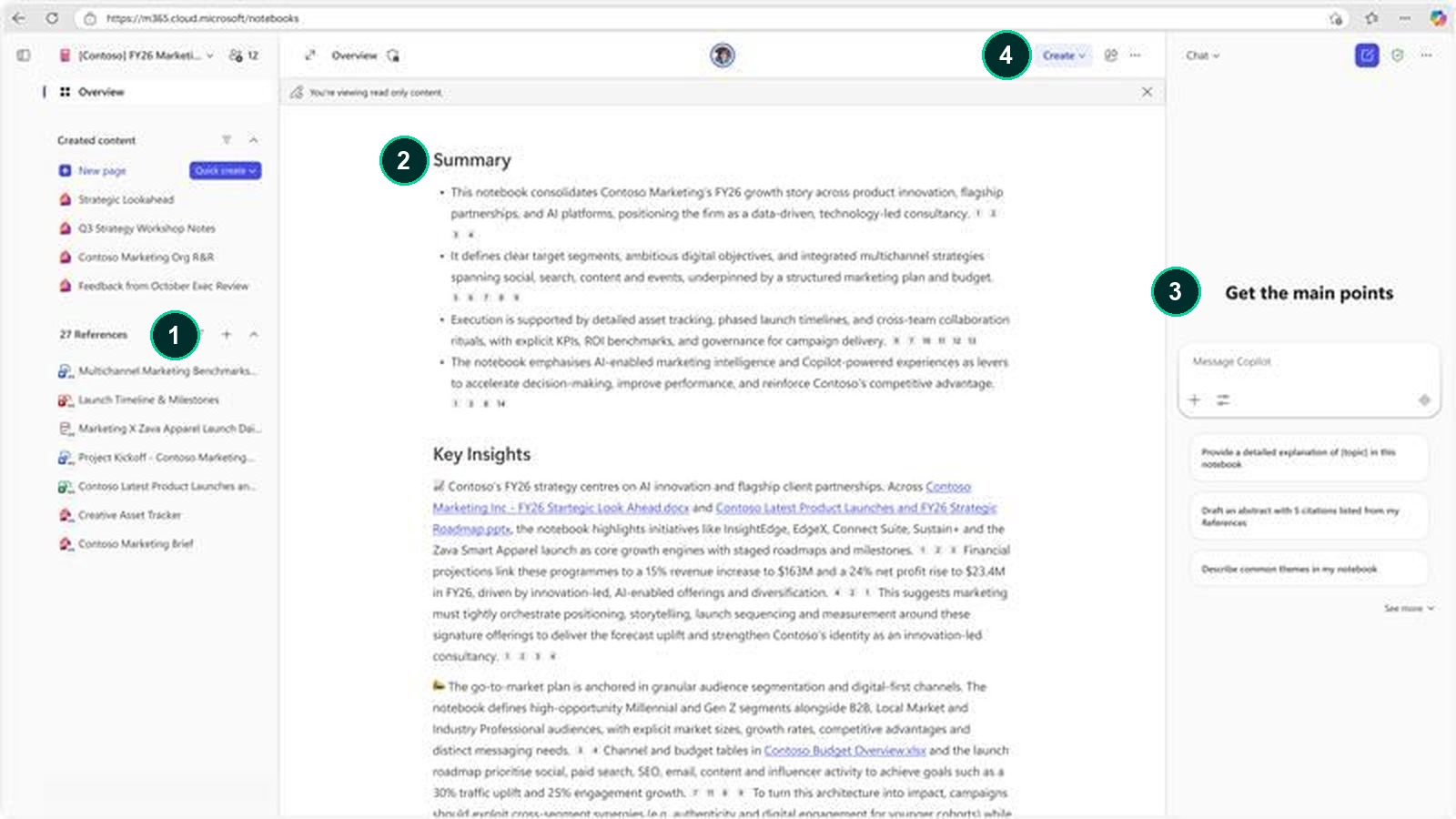
- References: the files, pages, emails and meetings Copilot grounds on.
- Summary: a notebook-level summary with numbered citations back to the references.
- Chat: ask questions or start from a suggested prompt.
- Create: turn notebook content into new output.
Example prompt
Using only this notebook’s references, draft a one-page project brief: objective, decisions made, open risks, and next steps with owners. Cite the source for each point.
What to verify
- Every citation points to the right reference.
- References are current. A file already in your cloud work data stays up to date in the notebook as the source changes.
- Nothing in the references is unsuitable for the people who will see the output.
Availability across the three workflows
- The organisational-source workflows described here use a Microsoft 365 Copilot licence. Notebook creation also requires a SharePoint or OneDrive service plan; basic Copilot Chat notebook access differs. Outlook meeting preparation needs Meeting Insights turned on.
- Features roll out gradually. Your licence, app version and organisation’s settings affect what you see.
- These routes follow Microsoft documentation. Platform differences are noted above, and labels may vary as features roll out. The screenshots are Microsoft product examples, not captures from a Braintree tenant.
Reviewed 2 October 2026. Rollouts are phased; confirm availability against your licence and current Microsoft guidance.
Frequently asked questions
Why does my meeting have no preparation content?
Insights need related material, such as shared files, emails or chats, and appear for one-to-one meetings or meetings with related shared content. Check too that your admin has turned on Meeting Insights.
Can colleagues see my meeting brief?
Briefs are personalised to what each person can access, so others may see different points.
Does a notebook copy my files?
For files already in your cloud work data, the notebook references them rather than keeping separate copies, so changes to the source flow through.
Related on Braintree
AI Jumpstart: connect your AI plans to your business strategy
Sources
Microsoft Support. Prepare for your meeting with Copilot. Accessed 1 October 2026
Microsoft Excel Blog. What’s New in Excel (May 2026). 26 May 2026
Microsoft Copilot Blog. Meet the updated Copilot Notebooks experience. 12 March 2026
Microsoft Support. Show changes that were made in a workbook. Accessed 2 October 2026.
Microsoft Support. Get help with Show Changes in Excel. Accessed 2 October 2026.
Microsoft Support. Add references to your Microsoft 365 Copilot Notebook. Accessed 2 October 2026.
Microsoft Support. Get started with Microsoft 365 Copilot Notebooks. Accessed 2 October 2026.