
DOCUMENTATION
Service Cases and Activities
The Customer Service module provides functions to service a customer. Here are some useful definitions;
A
Case
is the central record that identifies an incident that a customer has logged.
Activities
are the means by which we communicate with a customer. For example:
We make a phone call to a customer (outgoing activity).
a customer calls a customer representative for some issue (incoming activity).

Routing rules
can be set up, to route a specific incident (case) to a
queue
, a team, or a user to handle that case. A queue can be seen as a bucket where we assign some of the cases, so that the users who belongs to that queue will take action on that case record or incident record.
Holiday schedules
are the timelines by which we define the days of the year that represent a holiday for our business, including public holidays and shut-down periods. These can then be used to ensure that cases which are subject to an SLA are handled on the business operating times and days only.
A
Service Level Agreement (SLA)
is used to provide a facility to the customer to solve issues within a specified, contracutal time limit.
Entitlements
are the level of services that the business will provide to the customer e.g. granting the customer a 24/7 service for a product that you have sold.
Scheduling
is extending or deciding a timeline at a customer’s place for servicing or installation or maintenance activities.
Cases, Activities and Queues
New Case
Click on Cases in the left Navigation Pane, then on the top command bar, click “+ New Case”.

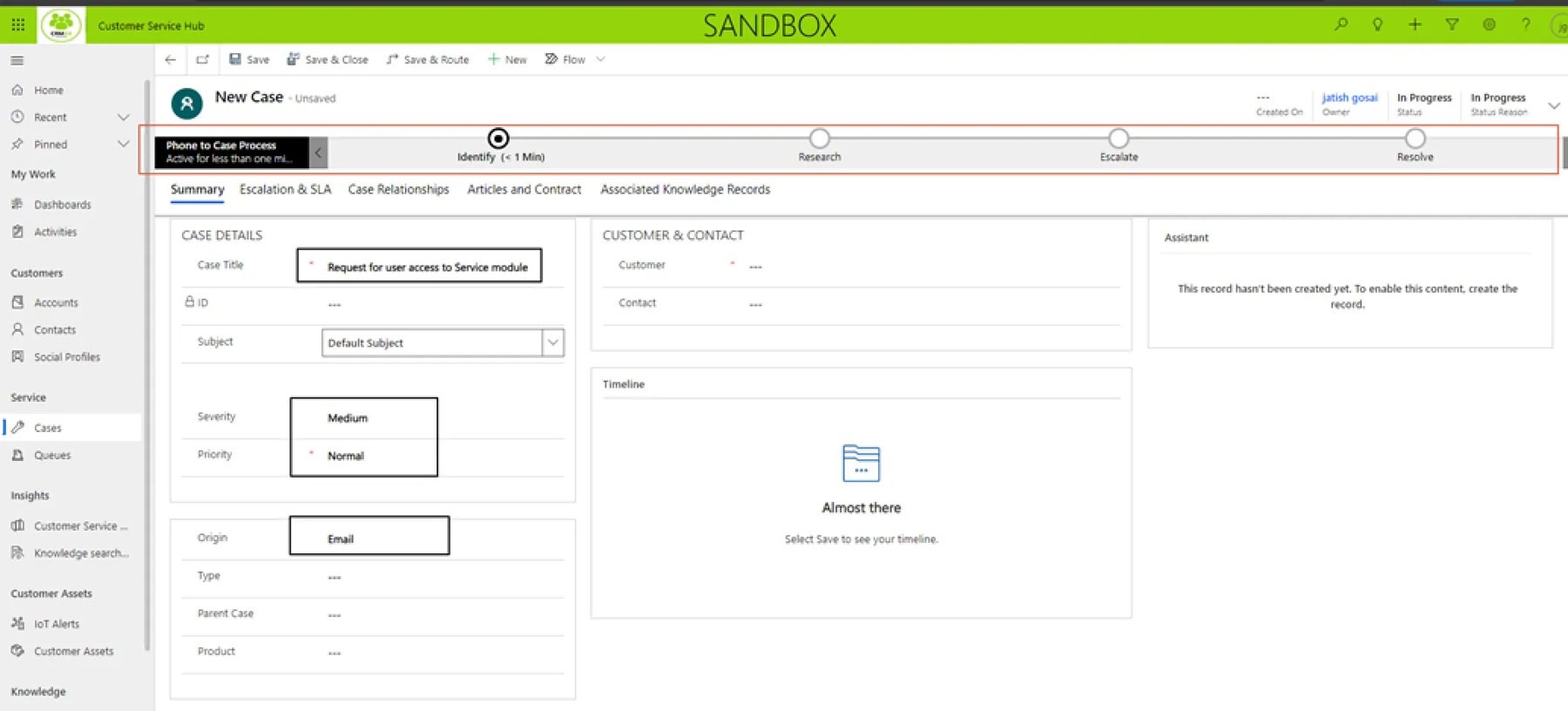

Business Process
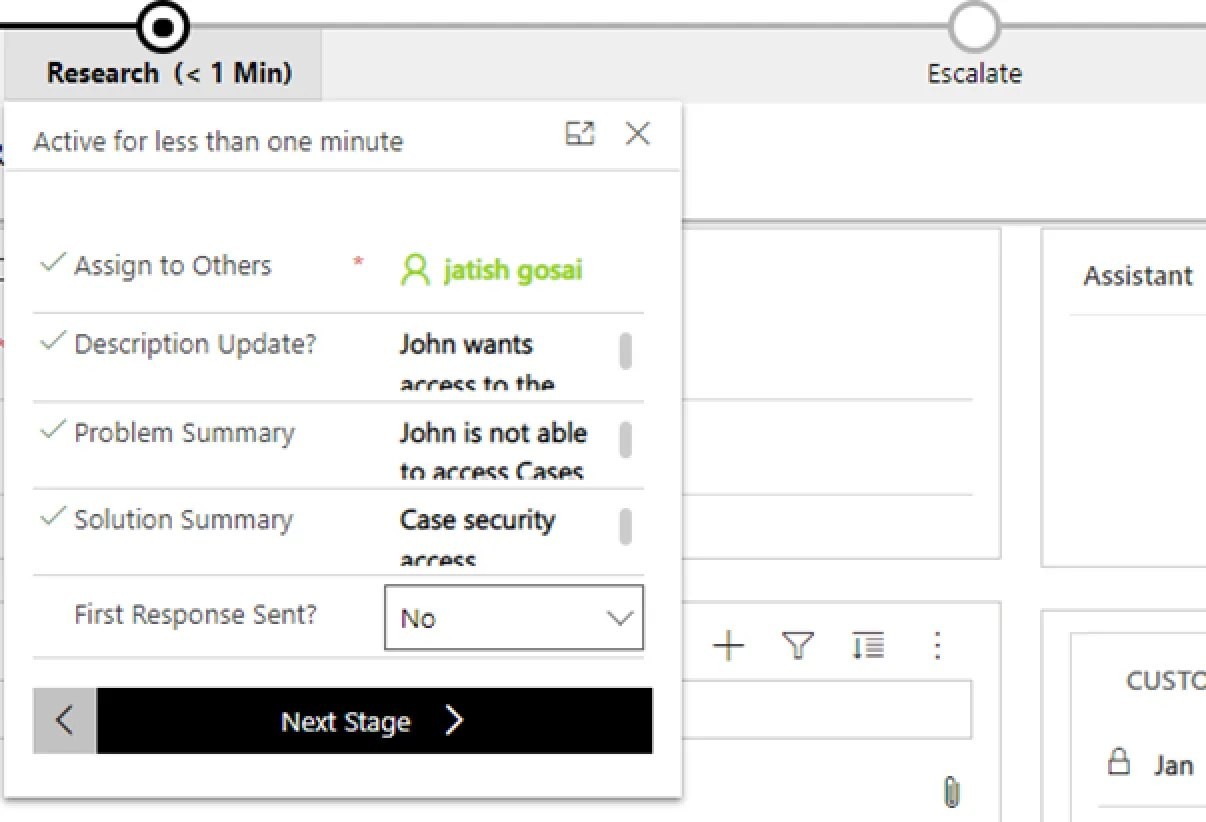
Use the Guided Process flow at the top to ensure the correct process is followed in resolving the case. Once the info for a stage is completed you can click on “Next stage” to move to the next stage.

Add Activities
Add activities to show the work done in resolving the case,

e.g. add a task.
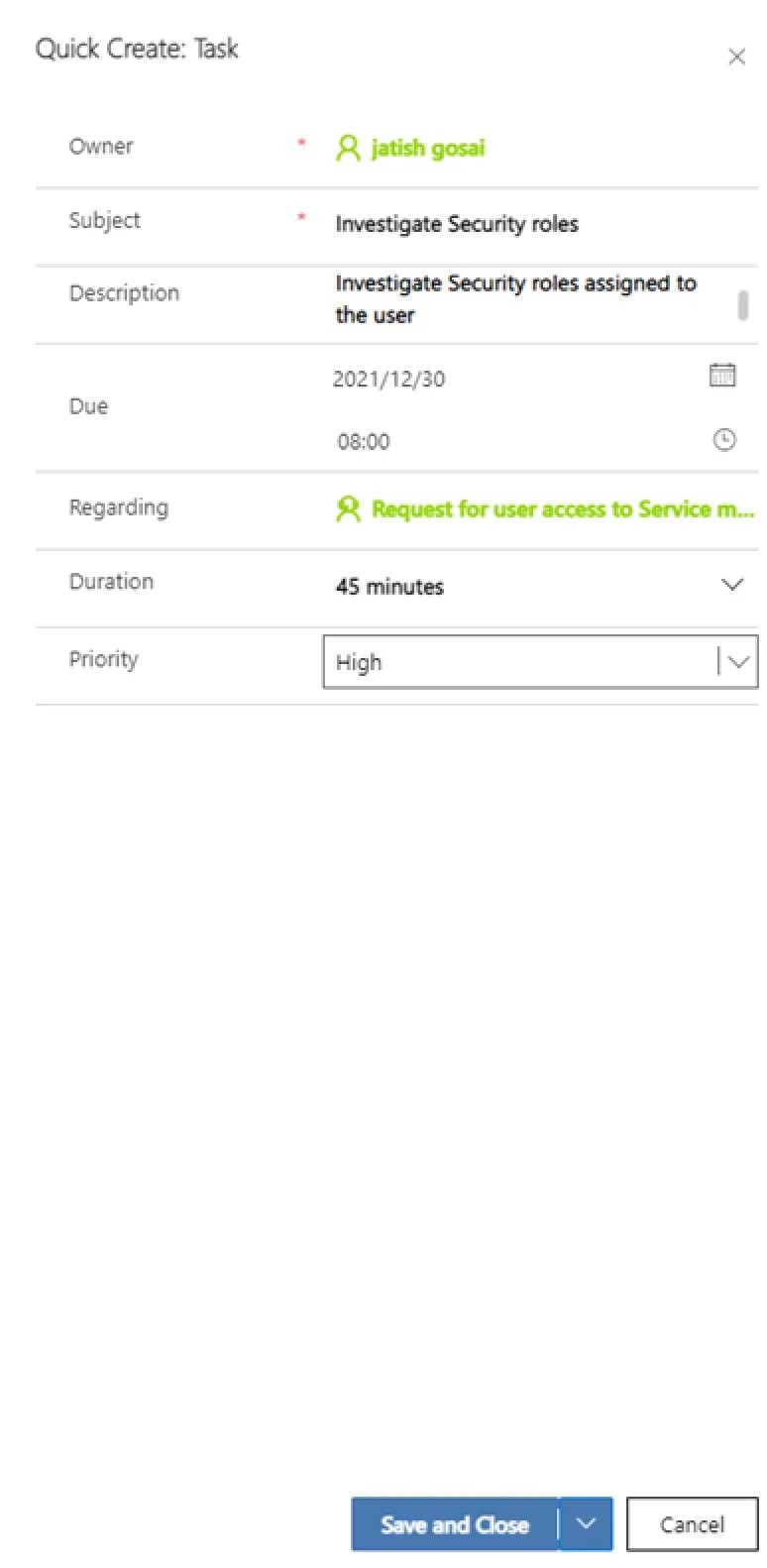
All activities need to be marked as Complete before the case can be marked as resolved.
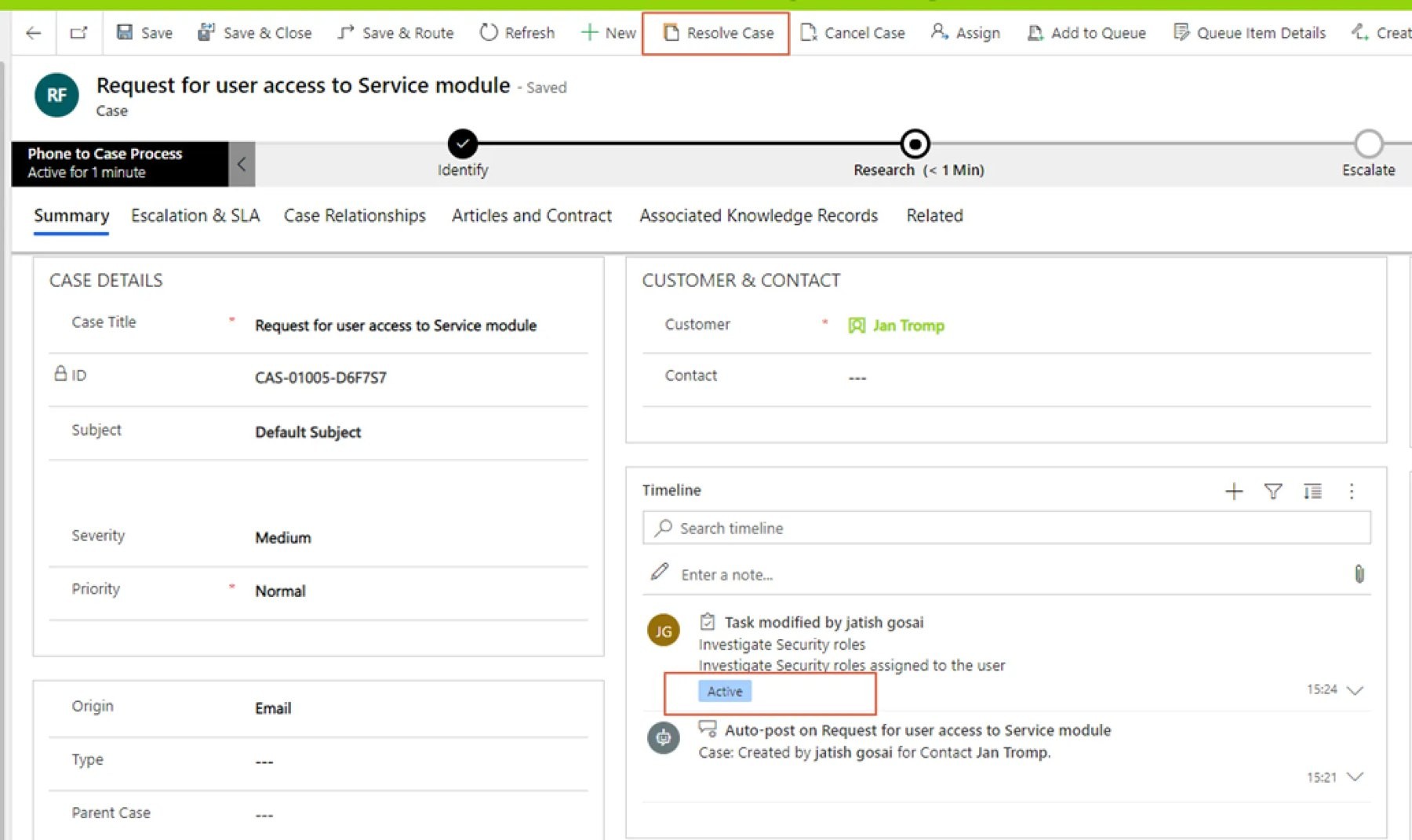
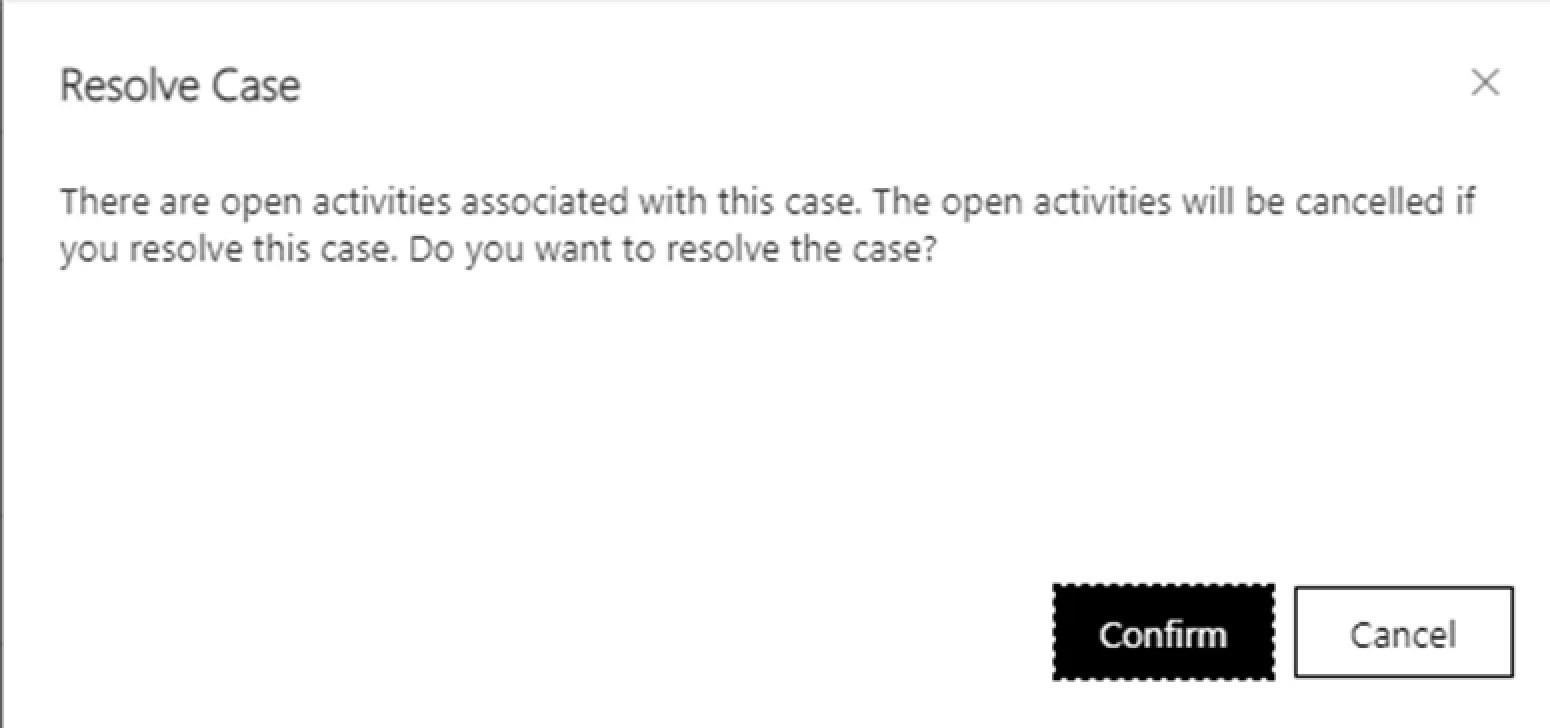
If the action is taken to Resolve Case and there is an open activity then the case is prevented from being resolved, unless you are willing for those activities to be auto cancelled.
The activities can be actioned from the Timeline.
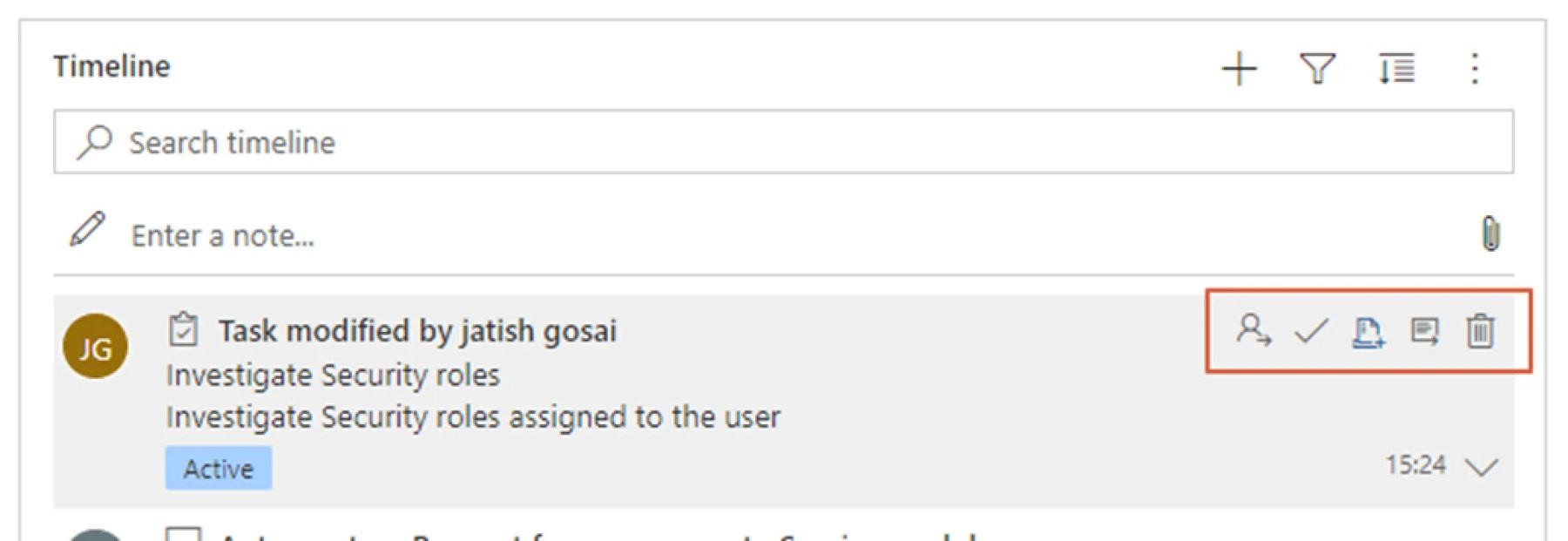
They can either be:
Assigned
Closed
Added to a Queue
Record Opened
Deleted Once opened, the activity can be marked as Complete.

A note with an attachment can also be added to the Case - this could perhaps be a screenshot sent be a user of the error.


Part of the case resolve process is to determine if any escalation is required.

Case Relationships
Articles & Contracts
Associated Knowledge Records
Related

Assignment
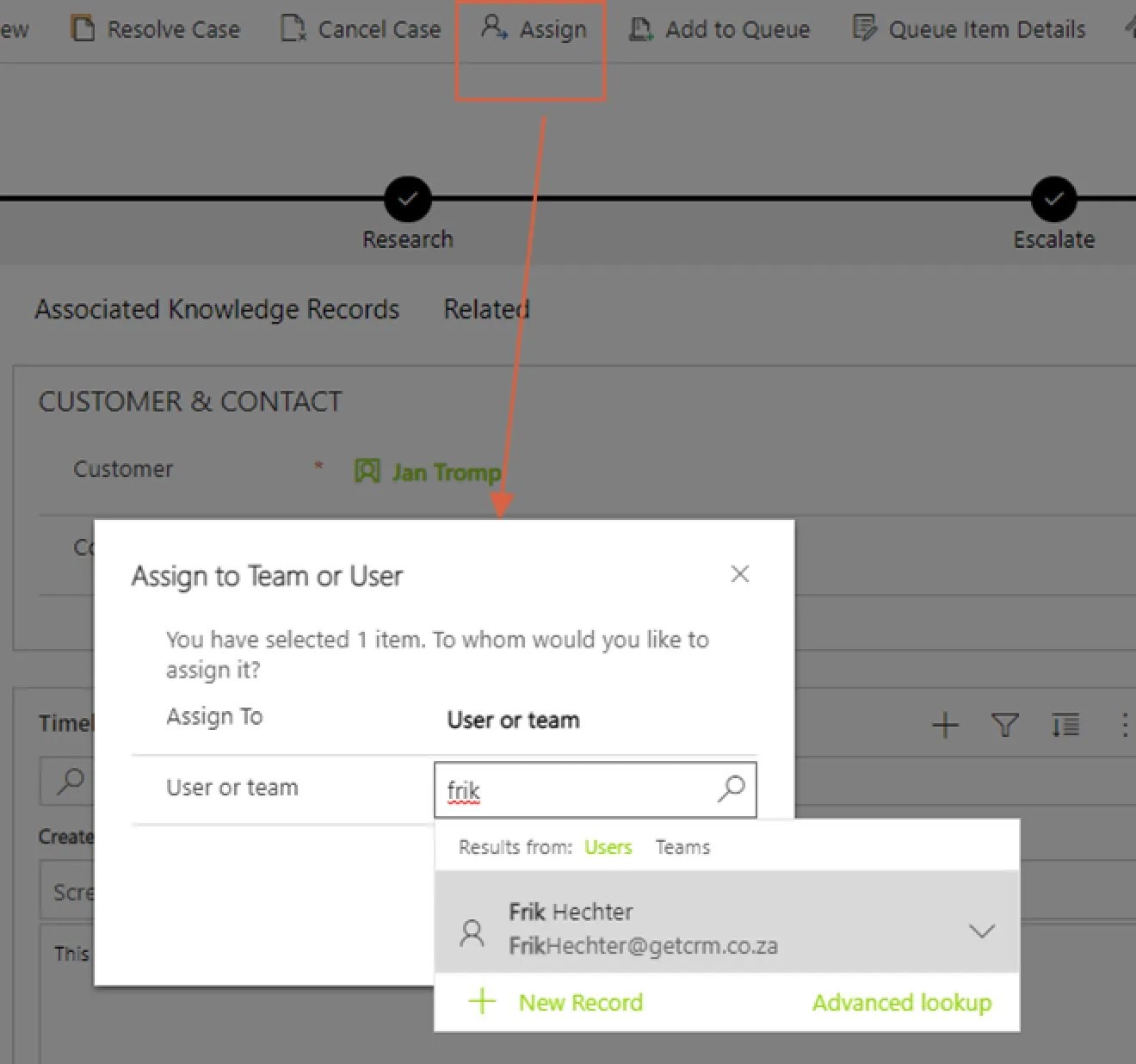
A case can be assigned to a user or a team.
Adding to Queue
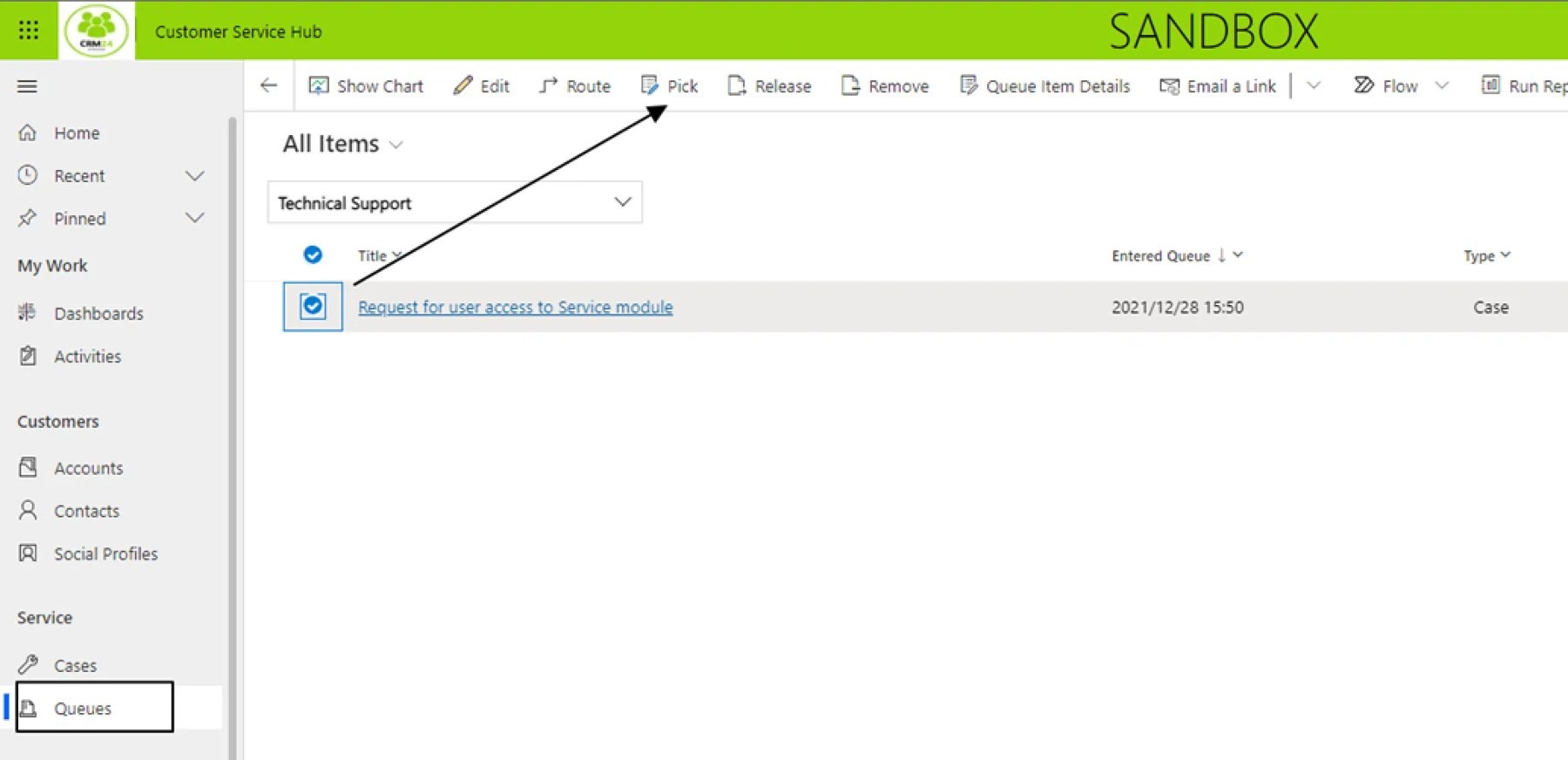
A case can also be assigned to a queue, and then from there a user can access the queue.

If a queue does not exist it can be created.

Once the case is assigned to a queue, a user who belongs to that queue can select the case and choose Pick. This assigns the case to the user to work on.
Resolve Case
When all case activity is complete, click on “Resolve” in the top command bar. The case is read-only when resolved / finalised.
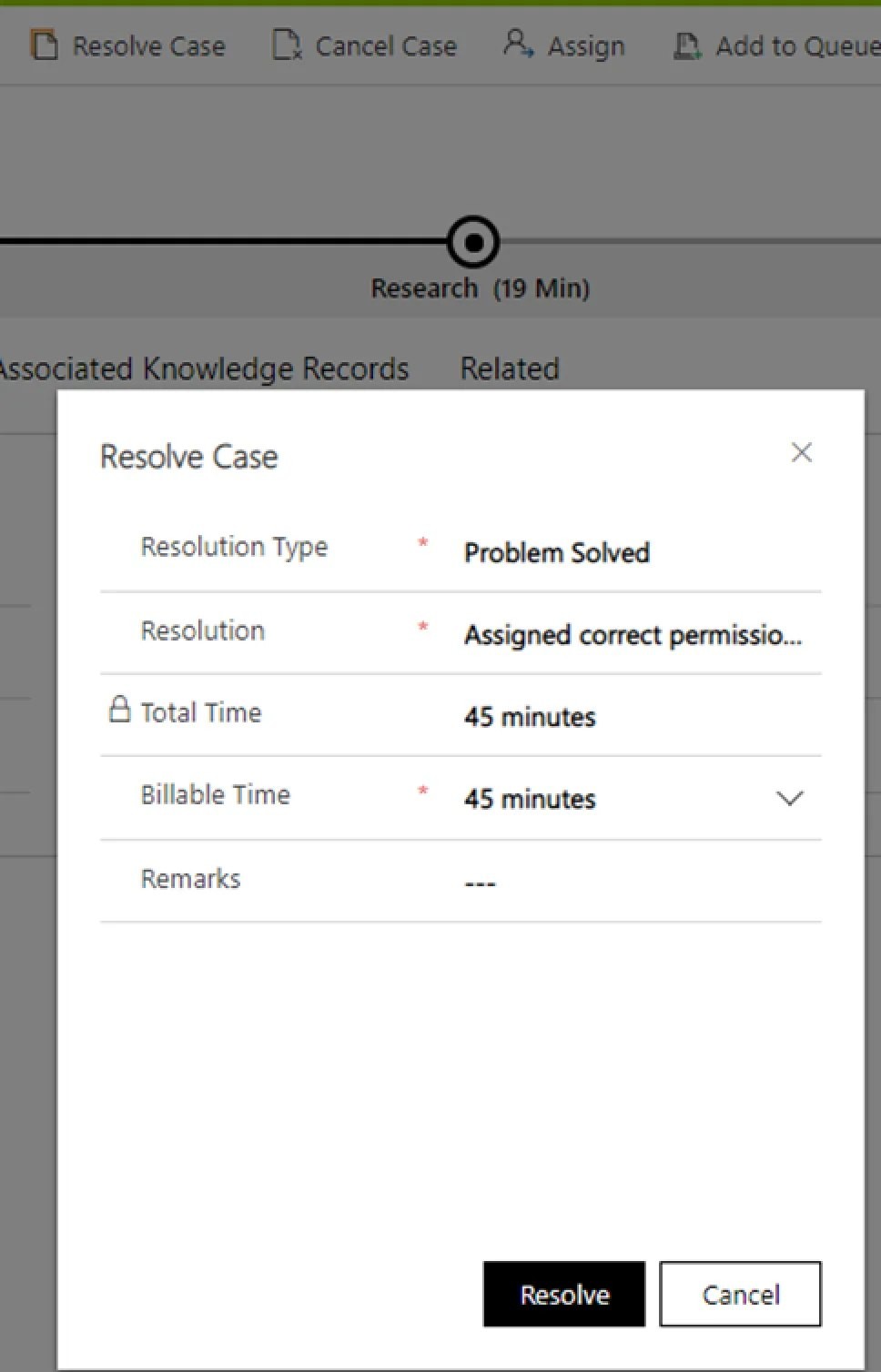

If a case needs to be reactivated after it has been resolved, for example an additional note needs to be added, then the case can be reactivated. The additional activity can be added, and then the case must be resolved again.
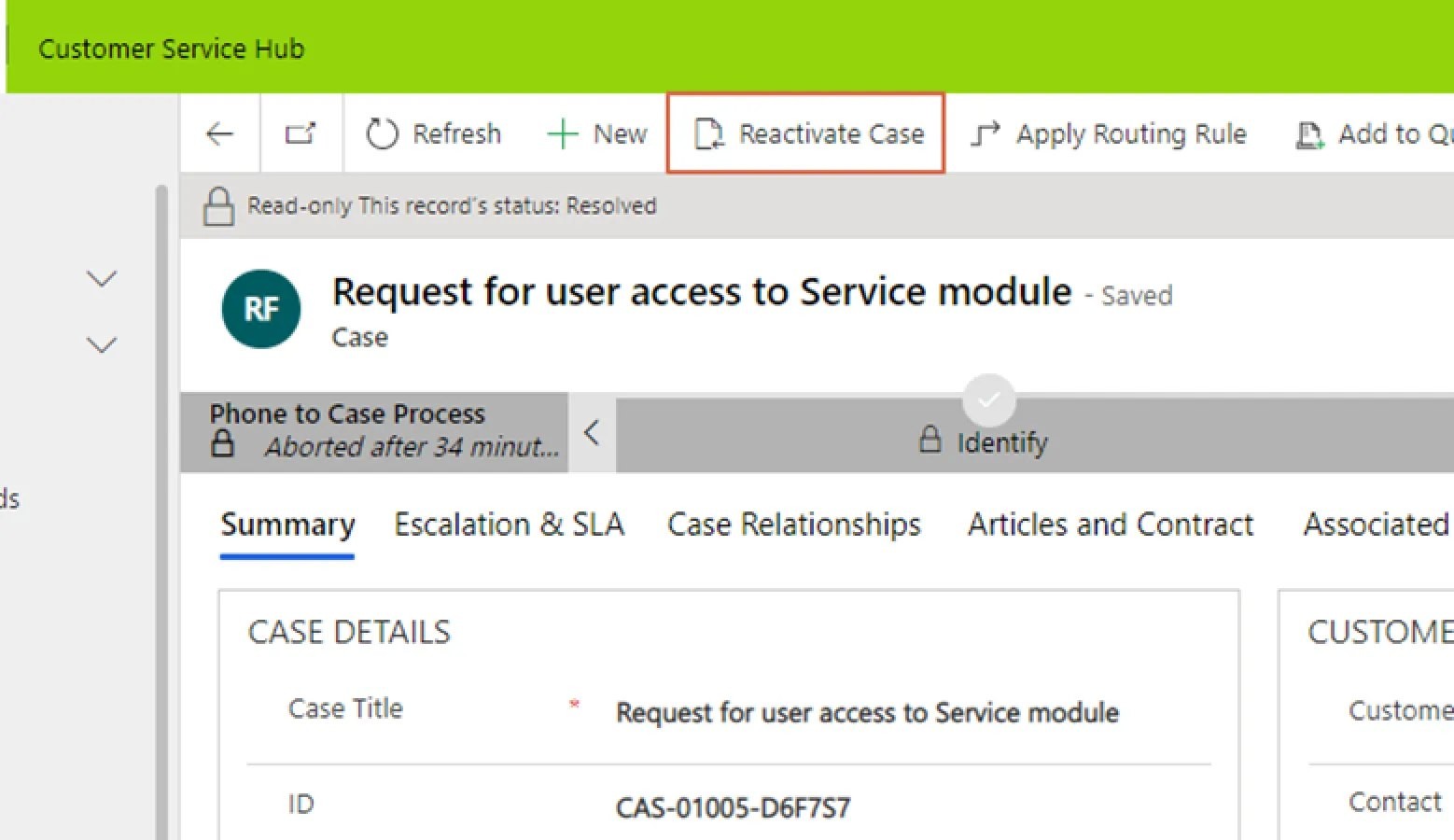
Once the case is resolved, the case can be seen from the List: My Resolved Cases.

Need help with your environment?
Use your agreed Braintree support channel, or contact the team to confirm the right support route.
Contact Braintree
