
DOCUMENTATION
Configuration
Table of Contents
Bank Statement Import
App Activation
In Business Central, search for and open “Braintree App Licenses”.
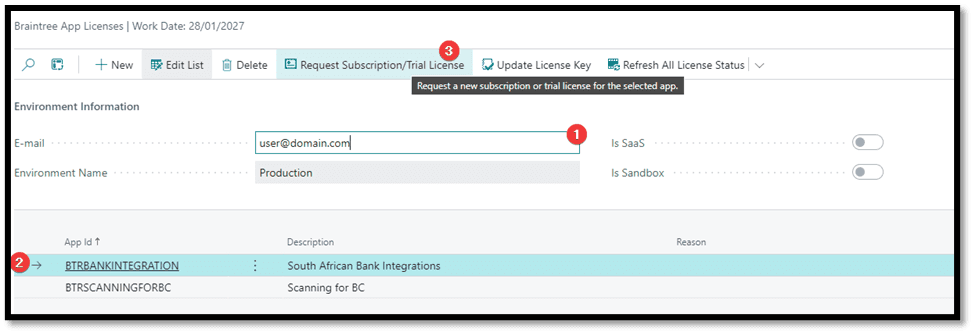
Enter your e-mail address.
Select the South African Bank Integrations entry.
Click Request Subscription/Trial License.
We will activate an evaluation license and send it to the email address you specified. The mail will contain a license key. Copy that license key then return to the Braintree App Licenses.

Select the South African Bank Integrations entry.
Click Update License Key.
Enter the key on the page that opens and click Ok. You should get a message that states “Thank you for registering”.
General Ledger Setup
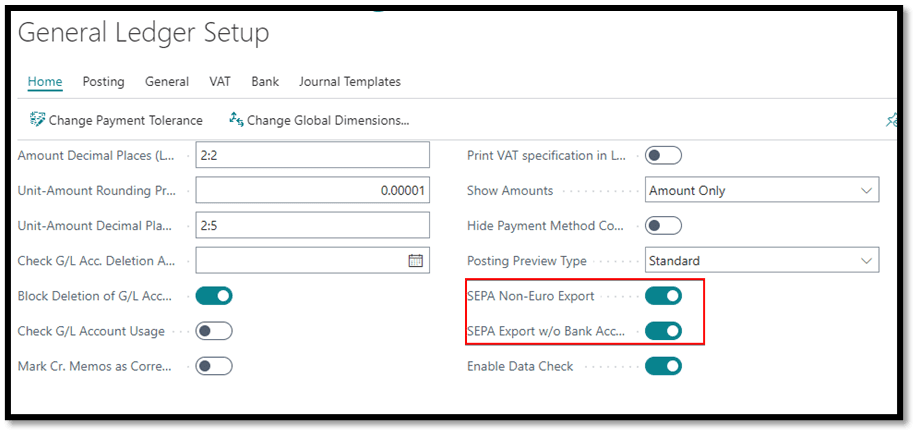
SEPA export settings table with LCY Code, SEPA Non-Euro Export, and SEPA Export without Bank Account Data fields.
Field | Value | Description |
|---|---|---|
LCY Code | ZAR | Validation that local currency is South African Rand. |
SEPA Non-Euro Export | Yes | This functionality is built on standard Business Central Direct Debit functionality. Single European Payments Area (SEPA), by default only supports EUR transactions. |
SEPA Export w/o Bank Acc. Data | Yes | If this field is disabled, Business Central checks that fields, not required for the export, are populated. We can disable those checks by enabling this setting. |

Customer Bank Account
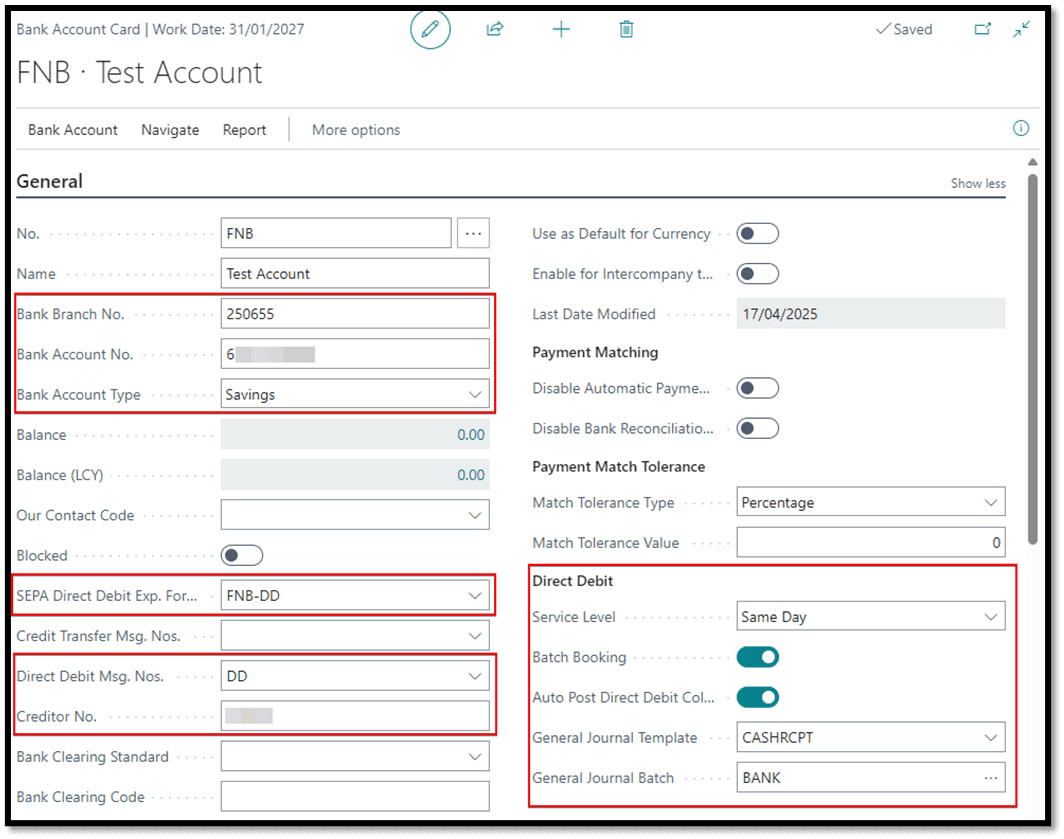
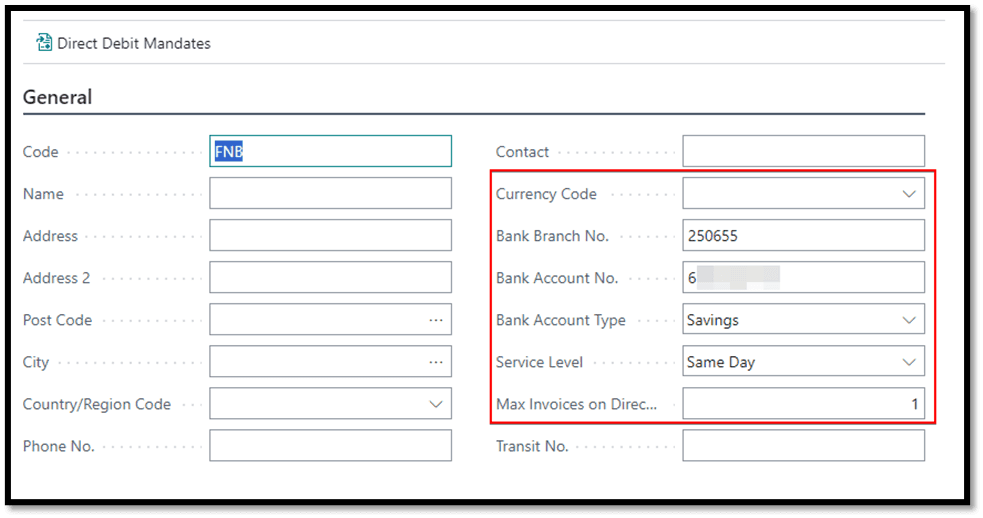
Bank account configuration fields table.
Field | Value | Description |
|---|---|---|
Bank Branch No. | Required | |
Bank Account No. | Required | |
Bank Account Type | Required | |
Service Level | Required | |
Max Invoices on Direct Debit | Indicates the maximum number of invoices that can be loaded on a Direct Debit Collection. | |
SWIFT Code | Required |
NOTE:
SEPA Direct Debit Mandates
: No changes have been made to this table, just know that an active mandate is required for this > functionality to work.
Upgrade and Installation Automation
Automatic Setup:
Automatically creates required setups during app installation.
Includes predefined mappings for bank-specific processing codeunits and data exchange definitions.
User only needs to map the setups to the appropriate bank accounts.
Upgrade Support:
Ensures smooth transitions during app upgrades by updating field mappings and configurations.
Job Queue
Two jobs are automatically created with status set to On-Hold and must be set to Ready by a user.
FNB DD-Collections Report BTR: By default, checks daily for updates from the bank for Direct Debit Collections that have been submitted and updates the Direct Debit Collection Entries.
DD-Get Unpaids Update BTR: Refreshes the Unpaids Worksheet and updates the Direct Debit Collection Entries that have not yet been posted.
Need help with your environment?
Use your agreed Braintree support channel, or contact the team to confirm the right support route.
Contact Braintree
