
DOCUMENTATION
ABSA Bank Integration
If you encounter any issues or errors while using the Braintree ZRA Smart Invoice Connector, refer to the troubleshooting guide below:
Key Features
Bank Statement Import
Functionality:
File based import of bank statements in the required formats.
Supports both standard and short formats for ABSA and Standard Bank.
Setup:
On Bank Account Card page, select the Bank Statement Import Format that relates to your bank account.
Payment Export
Functionality:
Exports payment journal data in bank-specific formats.
Setup:
On Bank Account Card page, select the Payment Export Format that relates to your bank account.
API Integration
Not currently supported for Cloud, available for On Prem.
Configuration
Bank Account Card
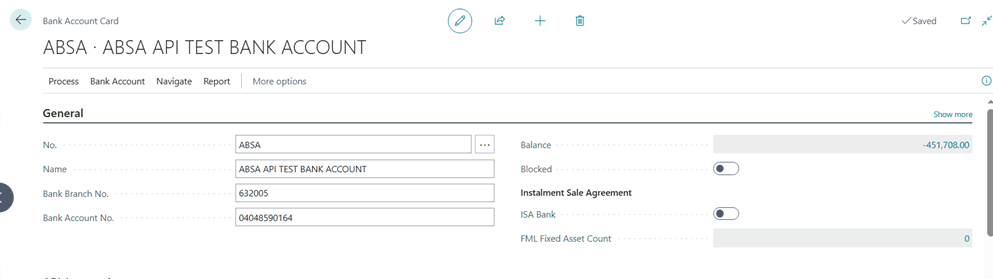
API Integration

The Bank API Integration Type must be set up as ABSA.
The Transaction Company Reference Prefix must be setup to populate the Transaction reference numbers on the Payment journal for submission.
The Other fields are all related to the ABSA environment for the correct connectivity and processing.
Vendor Bank Account
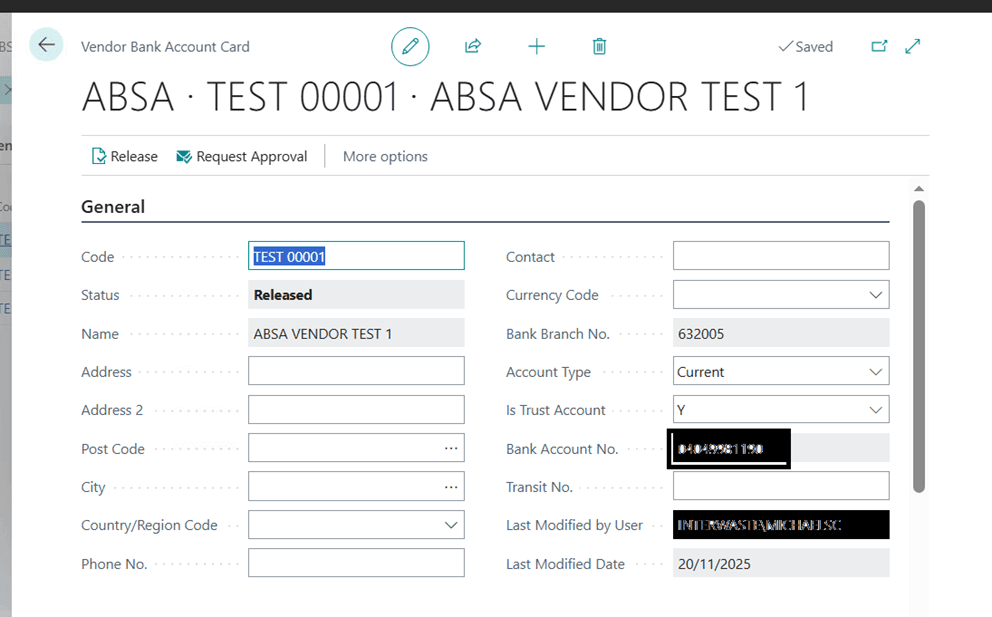
Vendor Card
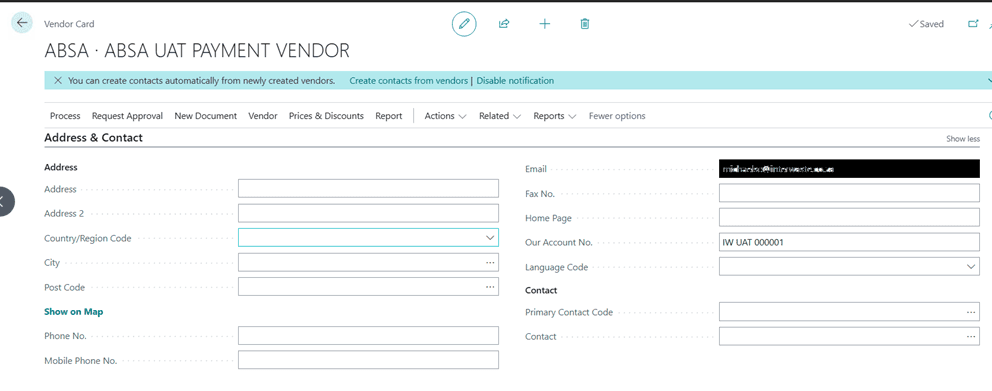
Under the Address & Contact information the Our Account No. must be populated with the reference number of the Vendor which will reflect on the Bank Statement.

Under the Payments information the Preferred Bank Account Code must be populated.
Payment Journals
Payment Batch setup If more than one Batch will be used for the ABSA integration the No series must be unique for each batch.

Suggest Payments/Creating Journal entries.
Create Payment journal entries.
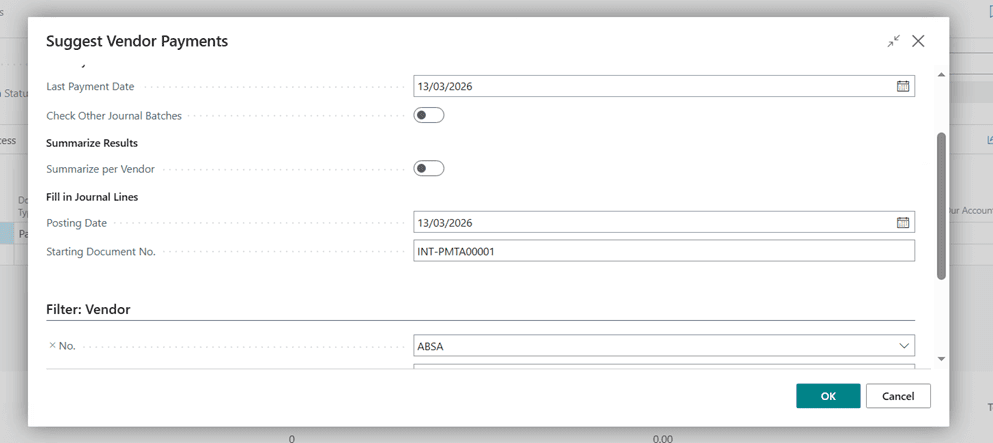
The Suggest Vendor Payment can be used or the entries can be captured manually in the journal.

When populating the journal the system will populate the External Document number and Payment reference, using the Transaction.
Company Reference Prefix from the bank account setup as a prefix. Adding a combination of the payment date and incrementing the last number to keep the payment reference/External document number unique.
The integration does not allow duplicate External document numbers.
Our Account No is populated on the payment journal and can be modified if need be.
The Bank API - Correlation ID and Bank API - Response info will be populated on submission to the bank.
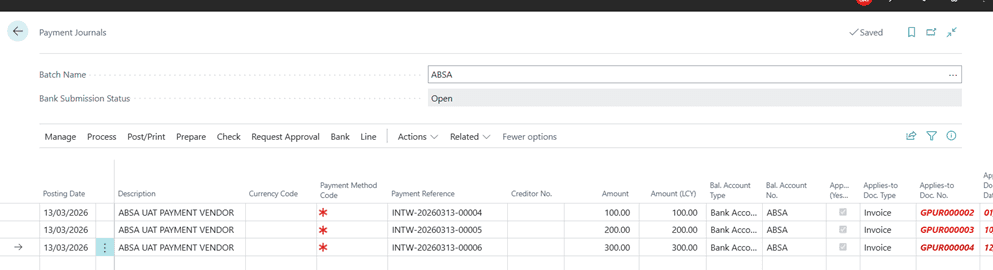
The Payment Method code will be populated on submission.
Submission
Approvals
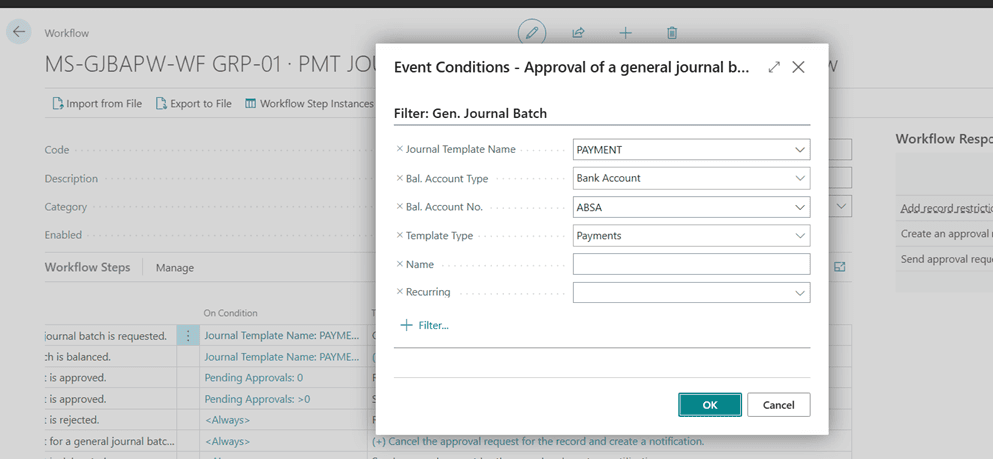
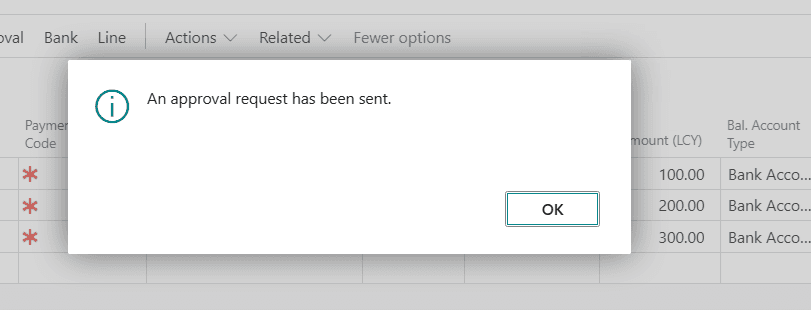
Before the batch can be submitted to the bank the journal batch must be approved.
A workflow must be setup.
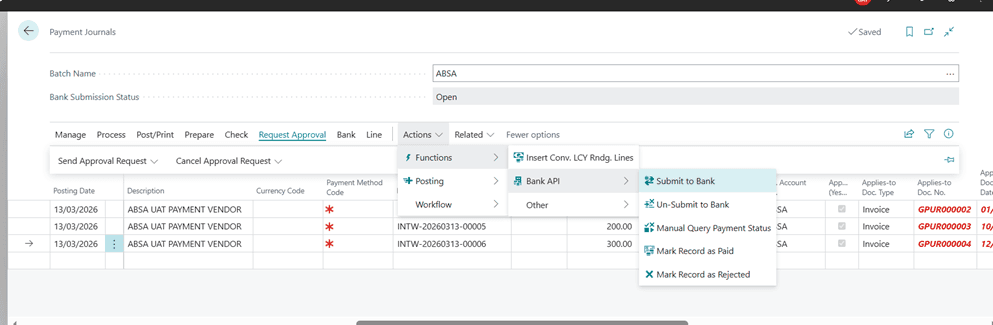

Submission to Bank
After approval the Journal can be submitted to the bank.
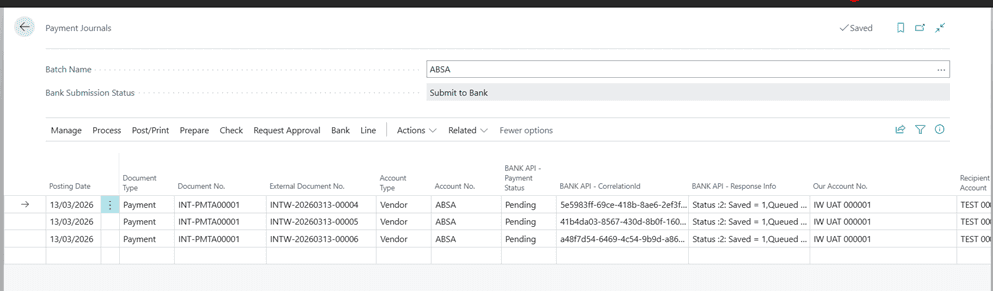
The Bank Submission Status will show “Submit to Bank”.
The Bank-API - Correlationid and Bank API - Response info will be populated.
The Bank-API - Correlationid is the unique id the Bank uses to ensure there are no duplicate payments made to the Vendor.
In example above the Payment status show as Pending.
The Payment status values:
Paid - If the submission was successfully submitted and paid on the ABSA system.
Rejected - This can be due to a duplicate payment amount for the same vendor bank on the same day, duplicate payment reference or invalid bank account.
Pending - Pending is queuing the payment the ABSA site.
On requesting Manual Query Payment status the system will check if the pending request was submitted successfully and change the Payment status to Paid.

Posting
Only lines which are status Paid will be posted.
As example below , another payment was entered with the same amount and the status changed to rejected. When posting the batch only the second line will be posted.
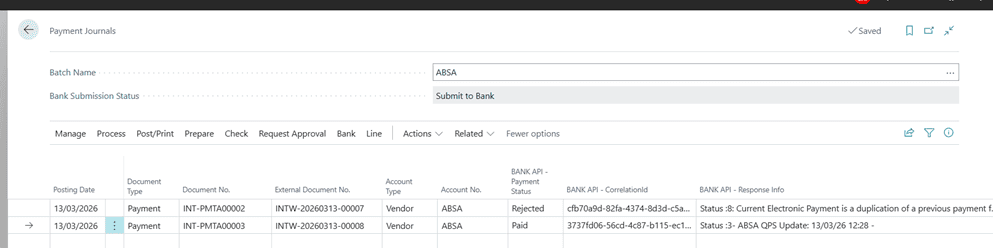
Rejected lines on the batch can be deleted.
When status is pending/paid no changes to the batch are allowed.
To reopen the batch the Un-submit to Bank function must be selected.
Job Queue
The Journal posting can be setup in a Job queue which will re-check the payment status to the Bank for pending and will automatically post the lines on the Batch marked as paid.
Need help with your environment?
Use your agreed Braintree support channel, or contact the team to confirm the right support route.
Contact Braintree
