
DOCUMENTATION
Item Journals
Item Journal Approval Workflow
Navigate to Workflow Templates.
Select Item Journal Approval Workflow.
Click on New.
Click on New Workflow from Template.

Capture desired conditions such as who the approver should be Under Approval User Setup, the “Approve Item Journals” field should be ticked for the specified approver.
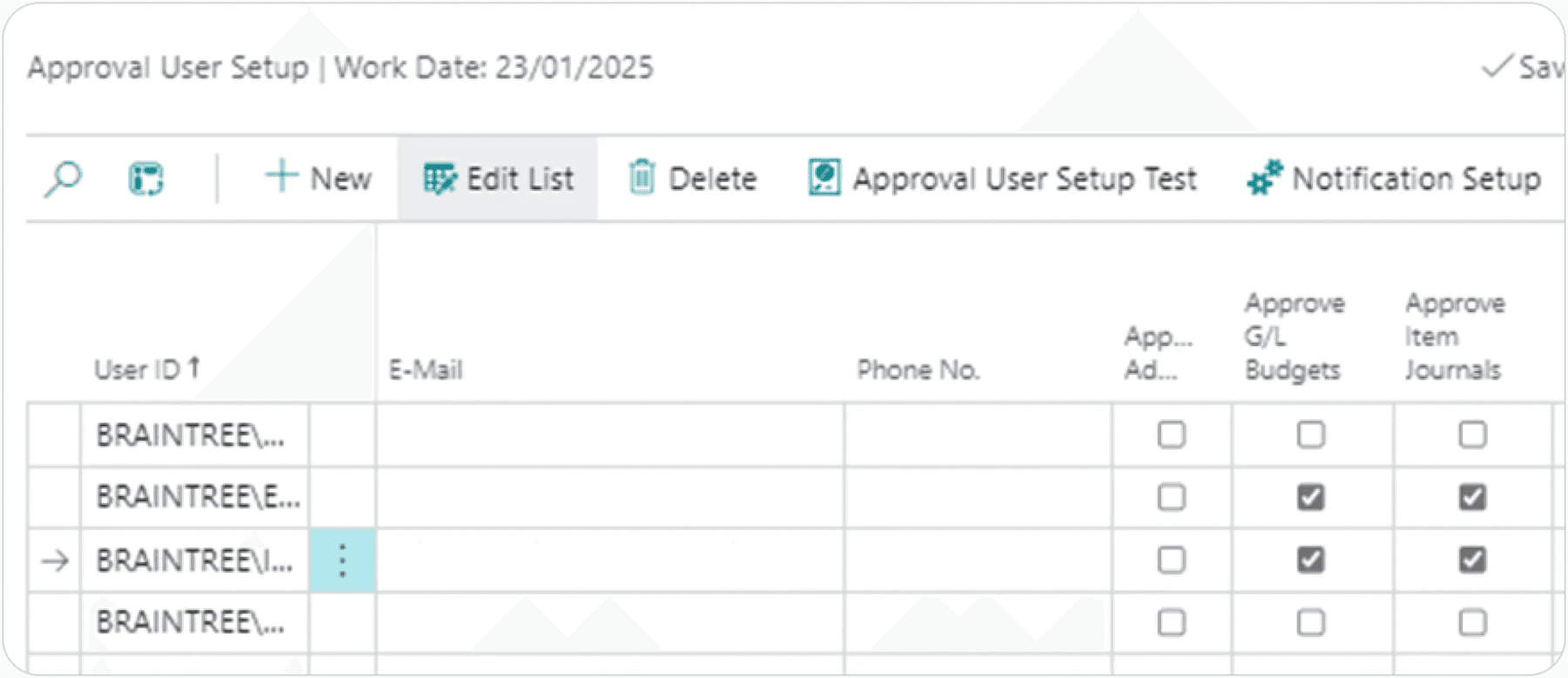
Once satisfied that all necessary conditions have been stipulated, workflow can be enabled.
Test Instructions
Navigate to Item Journals.
Select Item Journal Template.
Populate accordingly.
Attempt to Post the journal.
Verify the system displays the message:
“You cannot use Gen. Journal Line: GENERAL,DEFAULT,10000 for this action. The restriction was imposed because the journal batch requires approval.”
Send for Approval.
Click on Send Approval Request to initiate the approval process.
Confirm that the Status changes to Pending Approval.
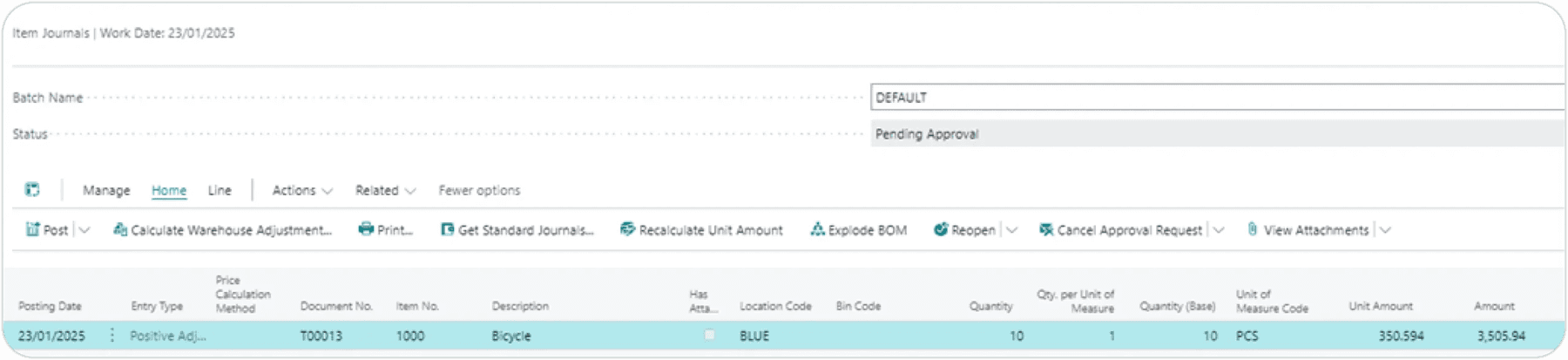
Approver Notification:
Verify that the approver receives a notification about the approval request.
Approval Process:
Simulate or allow the approver to approve the request.
Confirm Release:
Ensure the Status of the budget changes to Released after approval is granted.
Need help with your environment?
Use your agreed Braintree support channel, or contact the team to confirm the right support route.
Contact Braintree
