
DOCUMENTATION
Company-wide Configuration
This section covers basic setups that are used throughout Business Central, and will be needed in module-specific configurations. From the Home page, click on ‘Company Setups’.
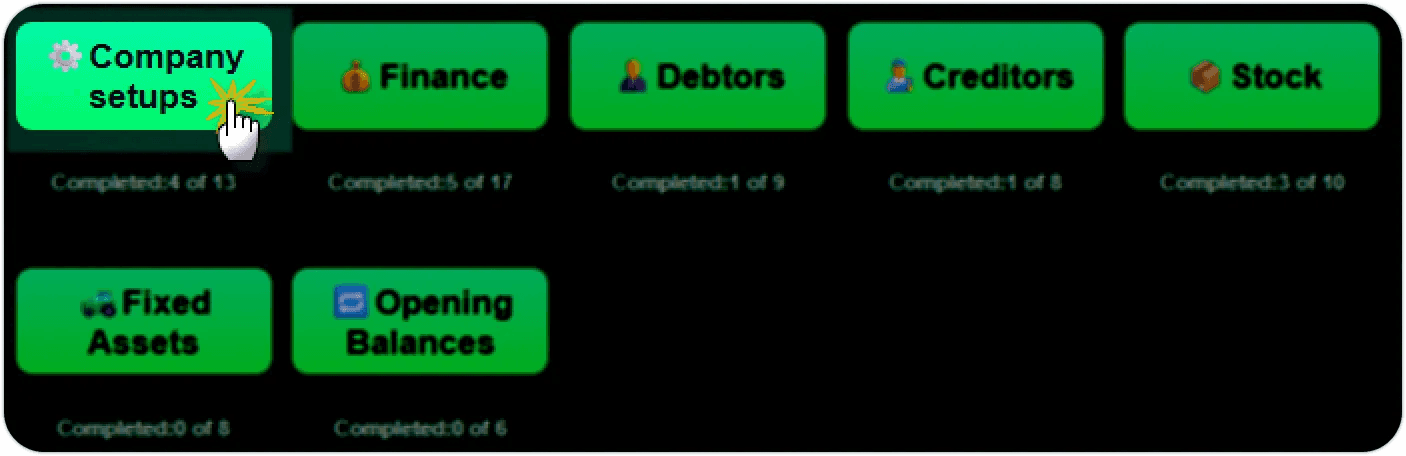
The following screen will open:

Work through the actions from top to bottom. The ‼️ symbol indicates that the step is compulsory, and that it must be done before subsequent steps can be handled.
Import Country Information
Country codes are used as part of addresses in various entries in Business Central.

JSON: uses a built-in setup, containing country codes, names, currency codes and stanadard VAT rates. Web Service loads from an external web service. Excel allows the user to select an Excel sheet to load countries from.

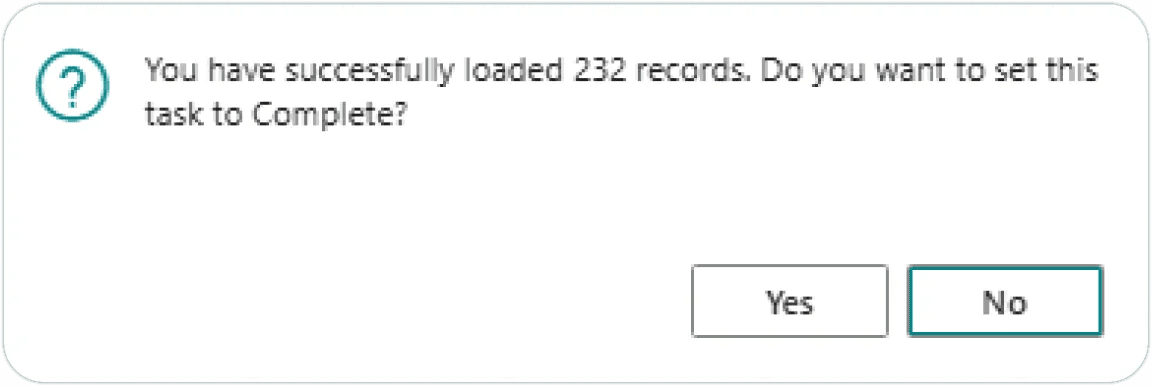
After countries have been loaded, a confirmation dialog will be displayed. Click on Yes:
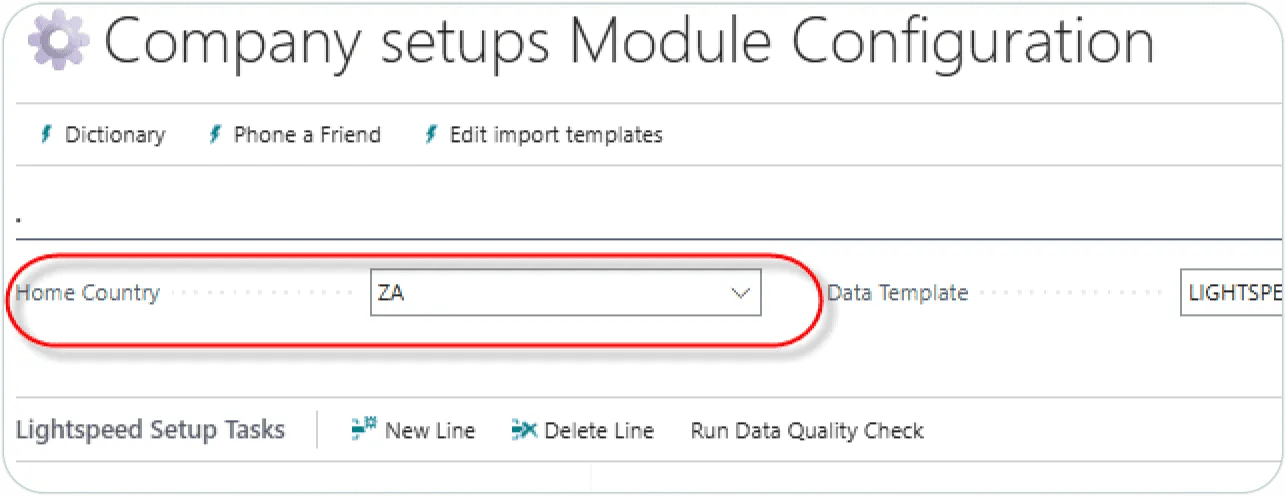
The home country code will be inserted into the Home Country field on the setup page.
Review Information
Click on ‘REVIEW configs or data’. The list of countries will be displayed. You can edit, add or delete records are required. The ‘Complete’ tick box for the task will be ticked on.
Define Company Information
This step allows you to capture key information about your company. Click on ‘Run Setup’.

Fields indicated with a red ✱ are compulsory fields, and need to be captured before the task is considered to be complete.
After completing all fields, load the company logo into the Picture field, by click on the ‘+’ symbol:
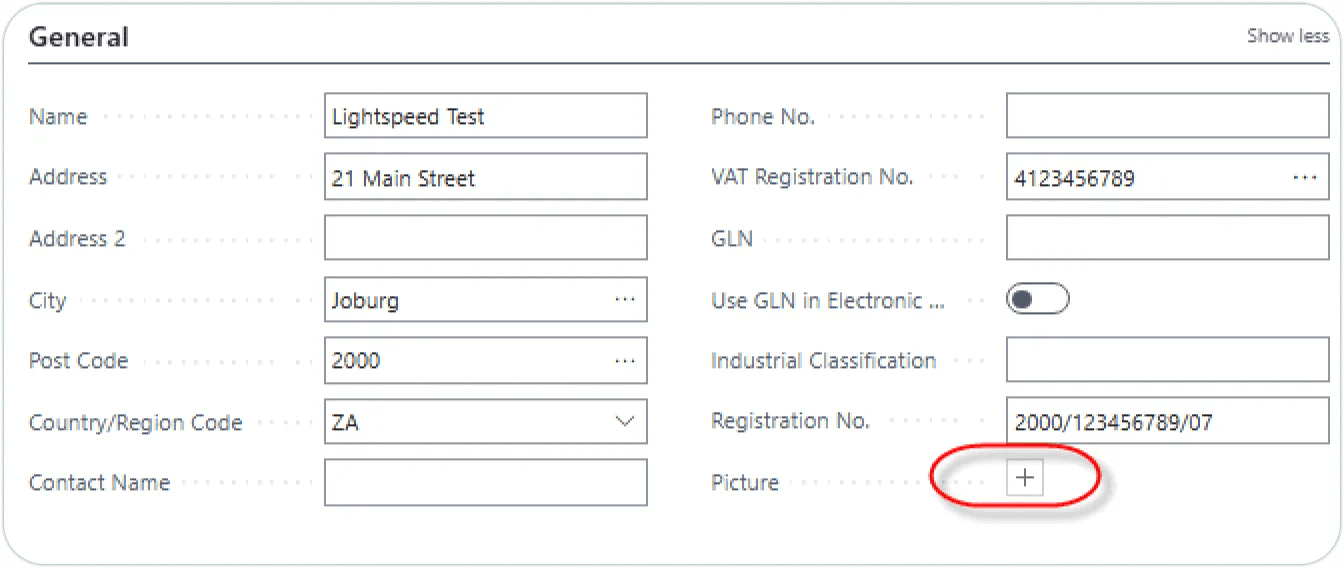
The completed screen should look something like this:
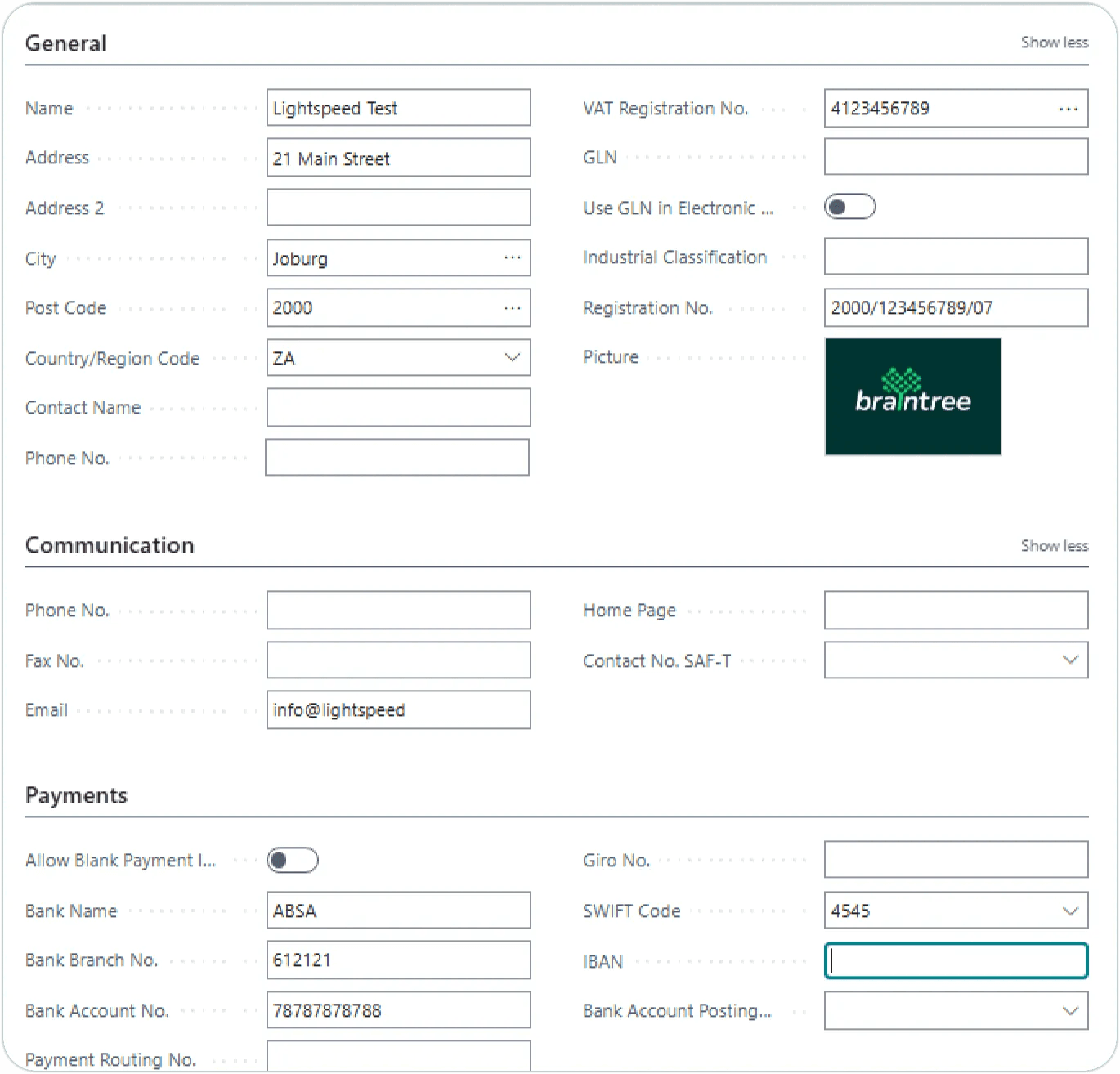
Close the page.
Basic Setups
This steps carries out a number of actions in one go. Click on ‘Run Setup’:


This will complete the following steps:
Create number series
Create payment methods
Create Reason codes
Create document sending profiles
Create marketing setup
After running the Setup, click on REVIEW against each substep to check the details.
Load Postal Codes
This step loads South African postal codes. The step provides two options:
JSON:
import from the JSON file which is packaged with FastTrack.
Excel:
import via an Excel sheet.

Click on Run Setup, and follow the prompts. After the import is completed, you can click on ‘✅ REVIEW Configs or Data’ to examine or edit the postal codes.
Update Company Information
View Page
Create Payment Terms
Payment terms are used in the Debtors and Creditors modules to calculate due dates on invoices. A sample set of payment terms can be loaded, and thereafter edited A sample of commonly used payment terms is deployed when FastTrack is installed. Click on ‘▶️Run Setup’ for the task. When complete, click on ‘✅REVIEW Configs or data’.

Add a new code
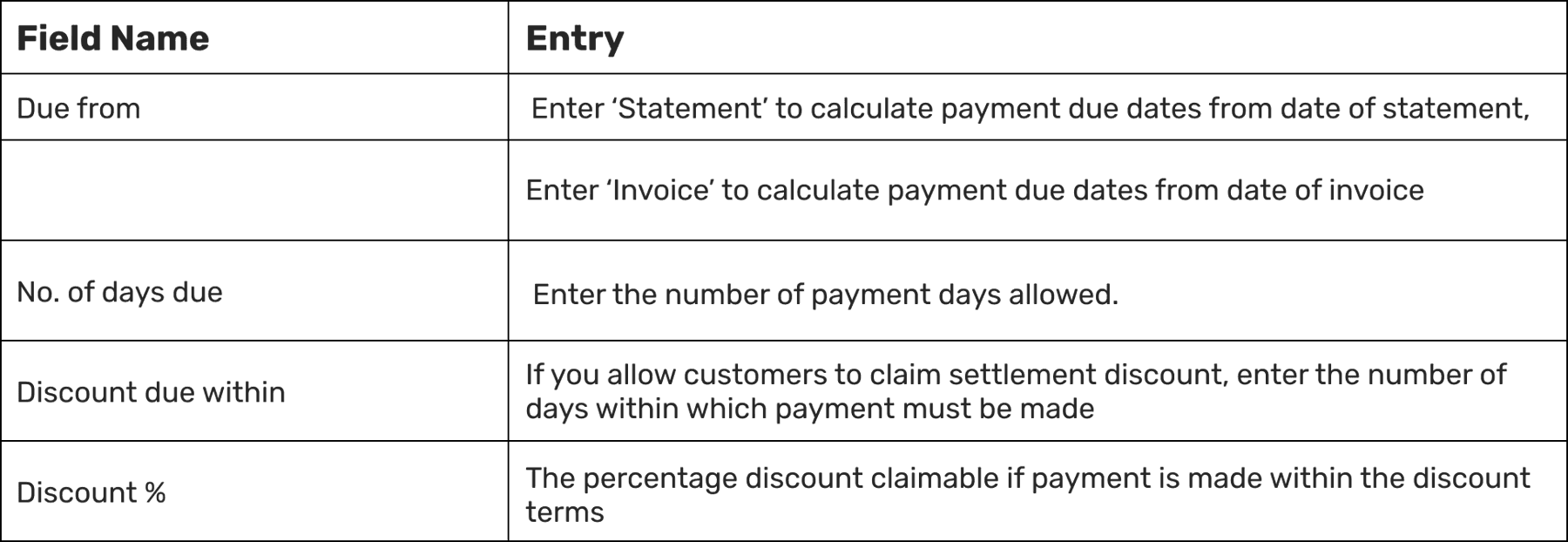
To add a new code, go to a blank line, and capture a payment terms code of up to 10 alpha-numeric characters. Then capture fetails as follows:
Create User Accounts and Setups
Users are granted access to Business Central by associating their organisation login or email with a Business Central licence. This is usually done by a system administrator. In addition to the user account, there may be other settings that need to be configured around your business rules, for example allowable posting dates.
From the Company setup, click on ▶️Run Setup for the task ‘Create user accounts and setups’. The system will create a user setup for each licensed user.
Click on the REVIEW option for User Accounts or User Setups, to review user information.
Need help with your environment?
Use your agreed Braintree support channel, or contact the team to confirm the right support route.
Contact Braintree
