
DOCUMENTATION
Configuration
Installing from Appsource
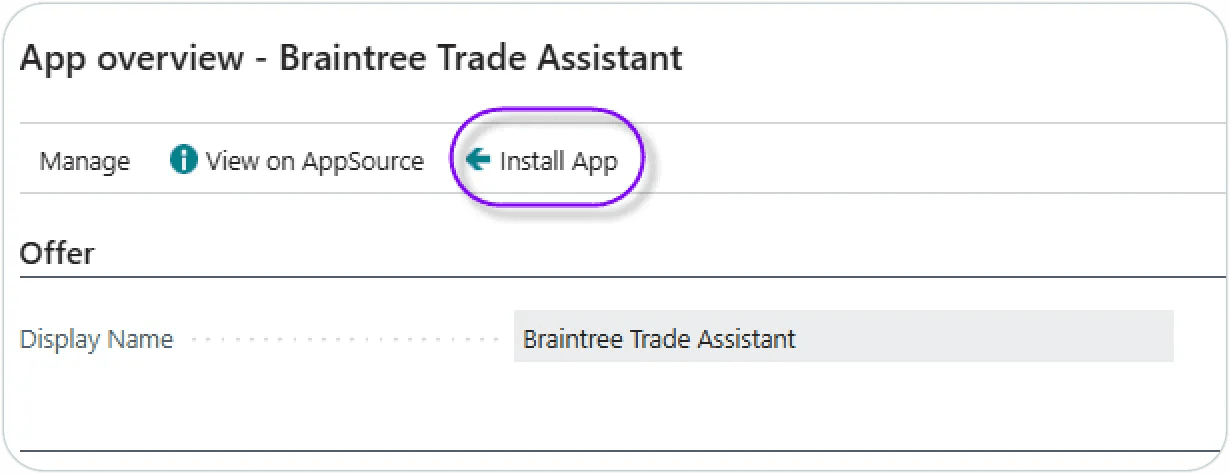
Open your Microsoft Dynamics Business Central tenant. Search for Extension Management. From the extension management page, select ‘AppSource Gallery’. This may take a minute or two to open. Search for Braintree. Select ‘Braintree Trade Assistant’. Click on Install App:
After the app has installed, the setup page will open. The first thing you need to do is request a license key.
How to request a license registration key
From the Trade Assistant Setup page. From the menu bar, select ‘Register App’:

From the list of apps, select ‘BCP-TRADEASSIST-VRS’, then select ‘Request Subscription / Trial license’ from the menu bar:
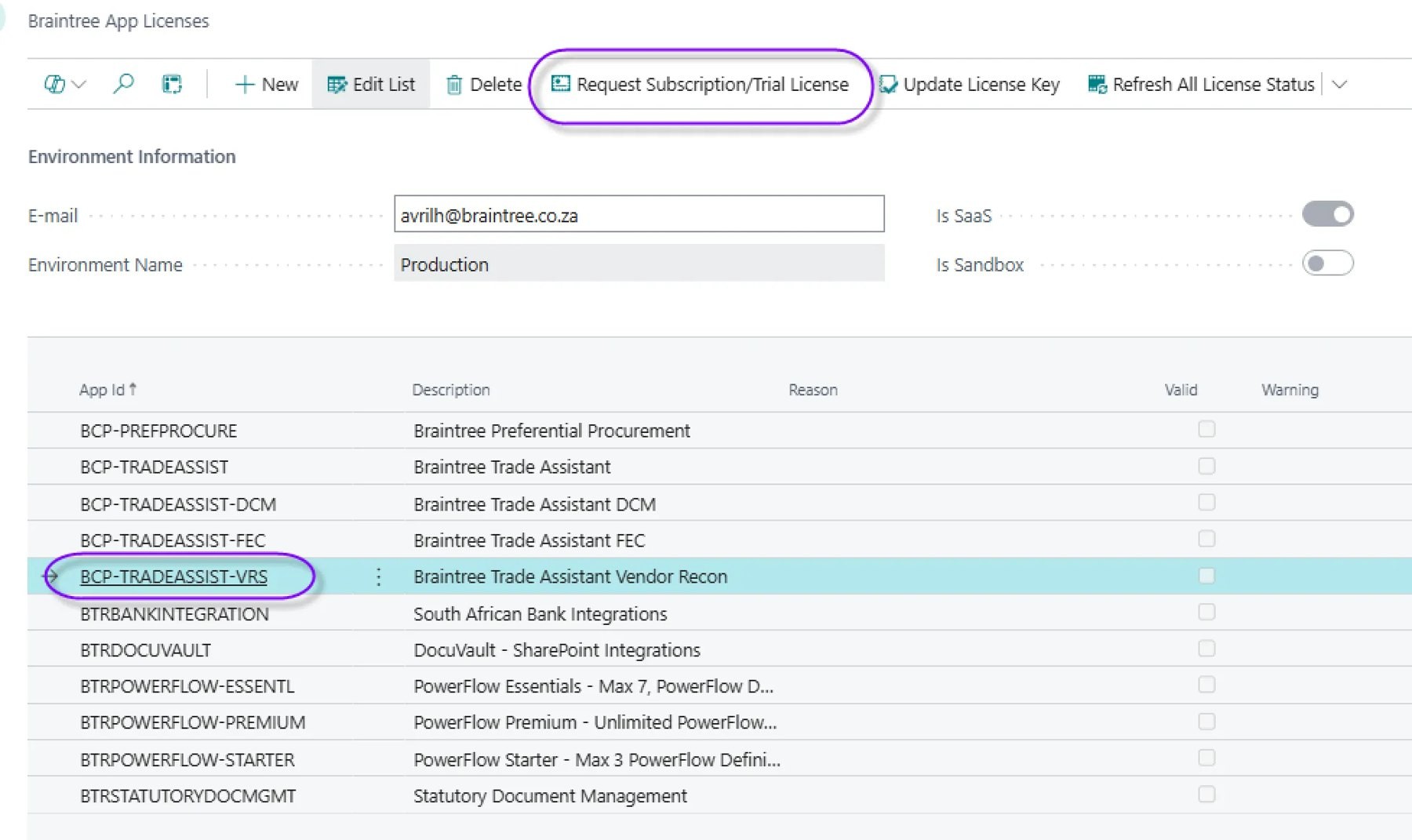
An email will be sent to the Braintree service desk.
Number Series
On installation, the system will create a new number series and insert it in the setup table. You can edit this if required.

Workflow setups
The Trade Assistant model has two versions of workflow: a simple line management model, and a full workflow based on standard Business Central workflow templates. During installation, a vendor recon approval template will be created. Use this to create a workflow based on standard Business Central workflow tools.
User Setups
Users who will be running vendor reconciliations need some basic setups. From the Trade Assistant setup page, select the menu option: ‘User Setups’:

For each recon administrator, fill in the fields:

Note: it is a good idea to create separate payment batches for each administrator.
Deduction Codes
When processing vendor reconciliations, you have an option to make deductions from the invoices being settled (over and above payment discount, which is handled by standard business central functionality). To do this, you will need to configure deduction codes. From the Trade Assistant Setup page, select ‘Deduction Codes’ from the menu. The Return Reasons list will open.

For each account that you would like to use as a deduction, you need to enter
Account type (default G/L account)
Account No.: the number of the account to be debited with the deduction.
Calculation type: select Percent or Amount.
Deduction Percent: optional, if you want to apply a standard percent when the code is selected on a reconciliation.
Withholding Tax
If you will be processing withholding tax for creditors:
Set the Withholding Tax switch to ON.
Select a Withholding Tax provision account type
Select a withholding tax provision account number
Need help with your environment?
Use your agreed Braintree support channel, or contact the team to confirm the right support route.
Contact Braintree
