
DOCUMENTATION
Setups
Warehouse Receipts: On a Warehouse Receipt, the user must select the line to process and click the lines section menu.
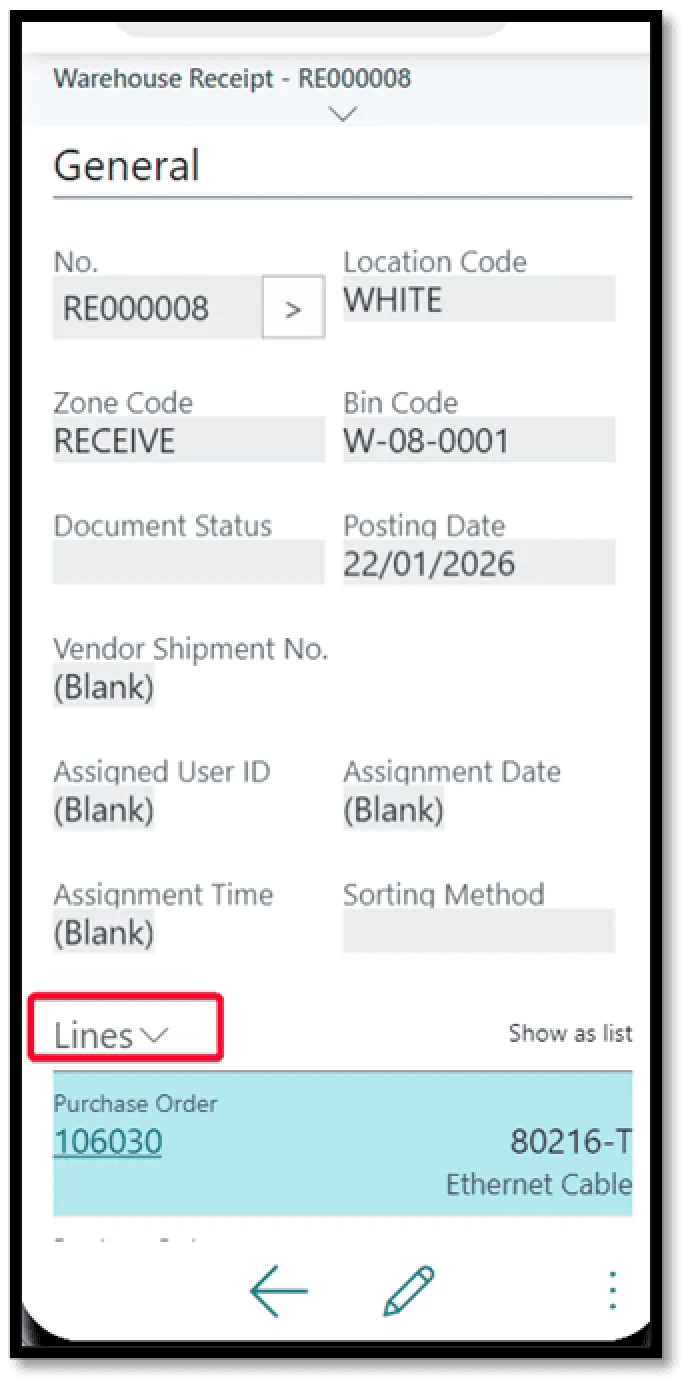
Click the Mobile Item Scanning action
1. The Scan Area contains information about the item being scanned, such as the Item No., Description, quantity scanned and the remaining quantity to scan. The page should be ready for scanning.
2. List of captured tracking entries.
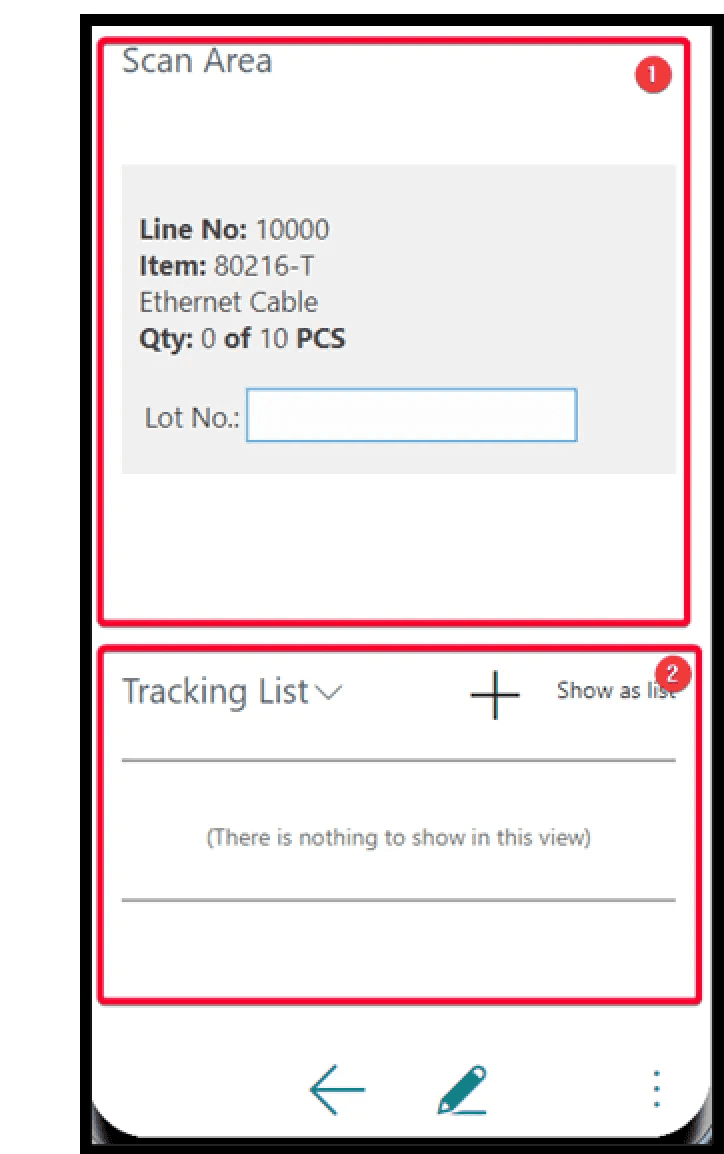
Scan a tracking no. (can use manual input too)

1. Enter a quantity.
2. Click Check button to save changes and create the tracking entry or Cancel button to discard the changes.
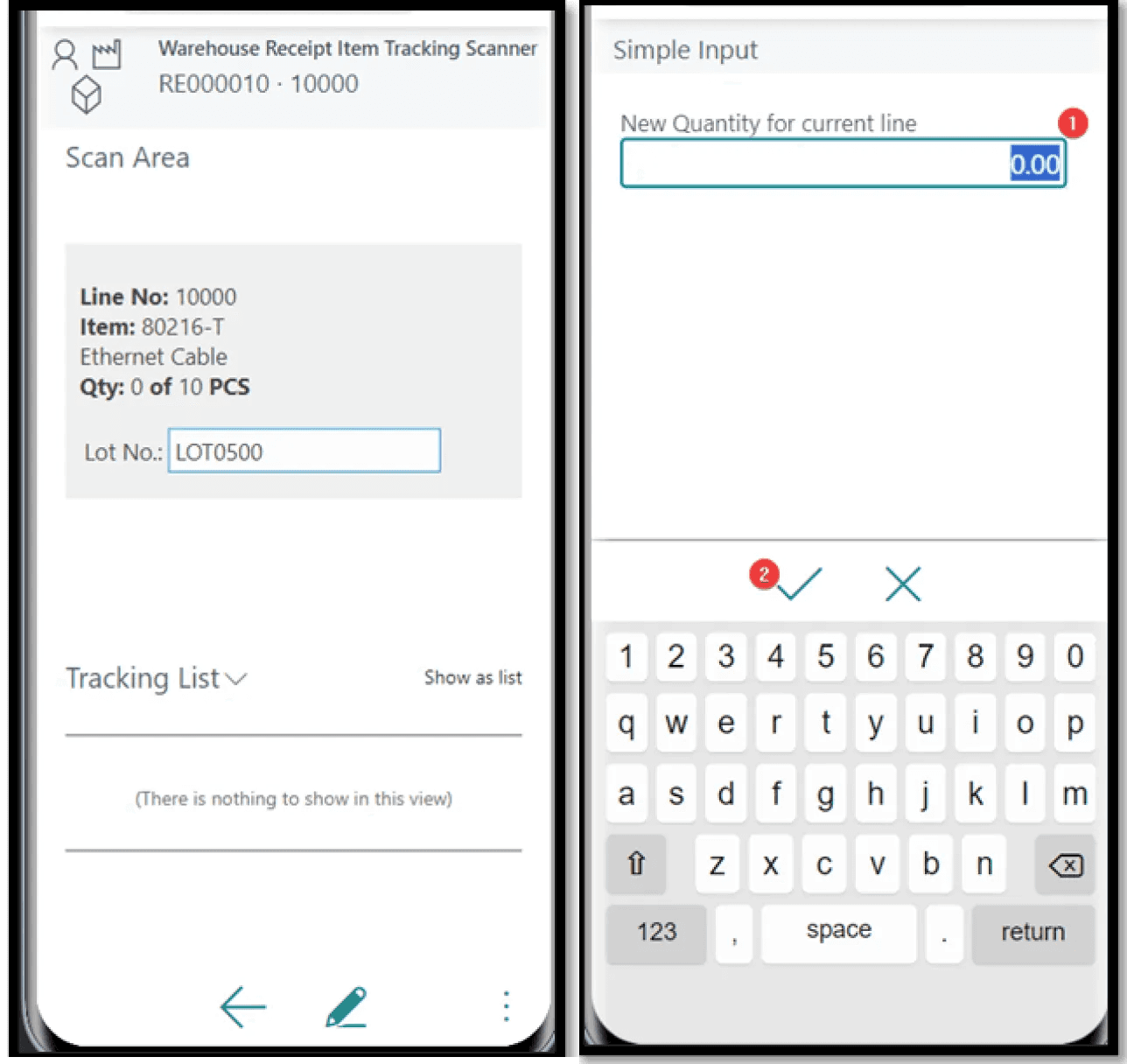
If accepted, the following is updated:
1. Quantity to handle.
2. Tracking List.
The user can click on an entry in the tracking list and delete an entry if required.

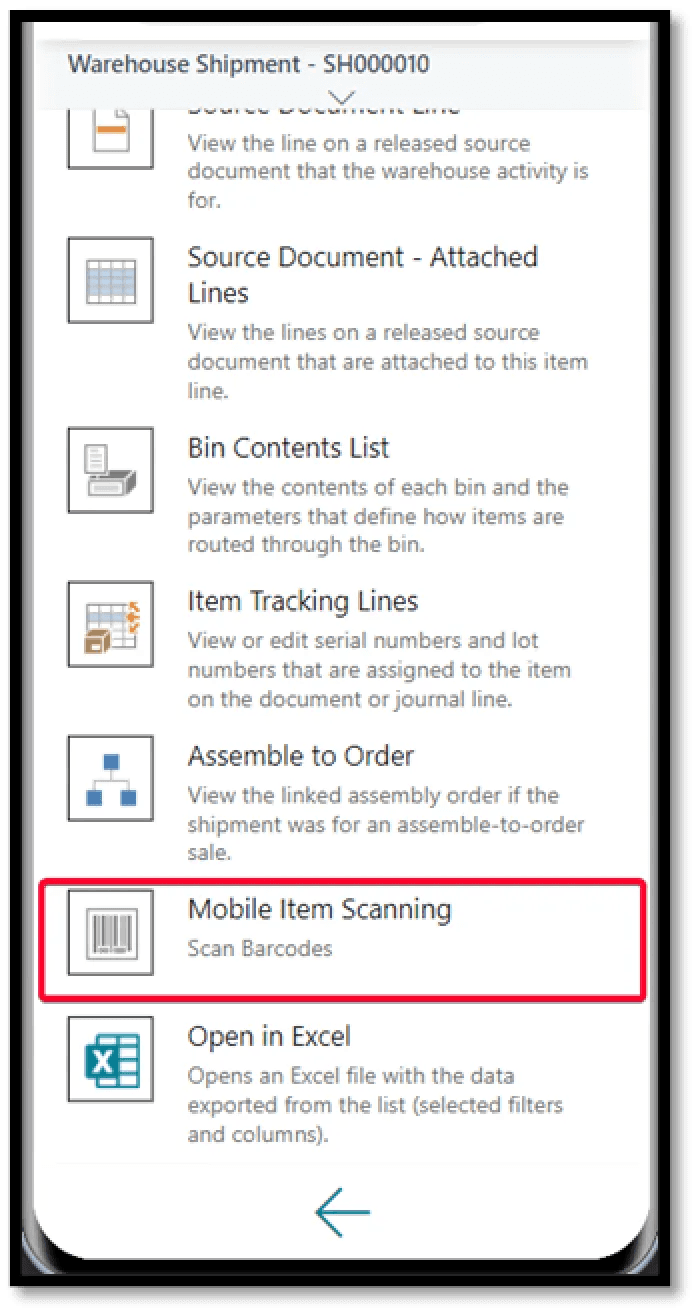
Warehouse Shipments: On a Warehouse Shipment, click the lines section menu.
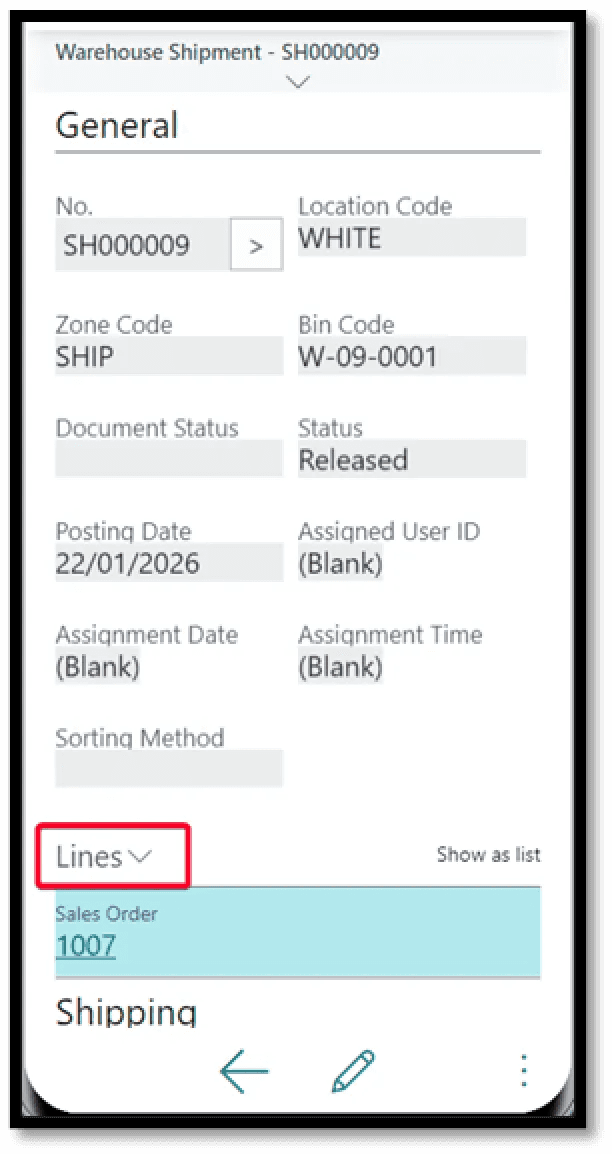
If the location requires Picks, the button will not be displayed. This is because tracking is done from the Pick and item tracking cannot be assigned from the warehouse shipment when picks are required.
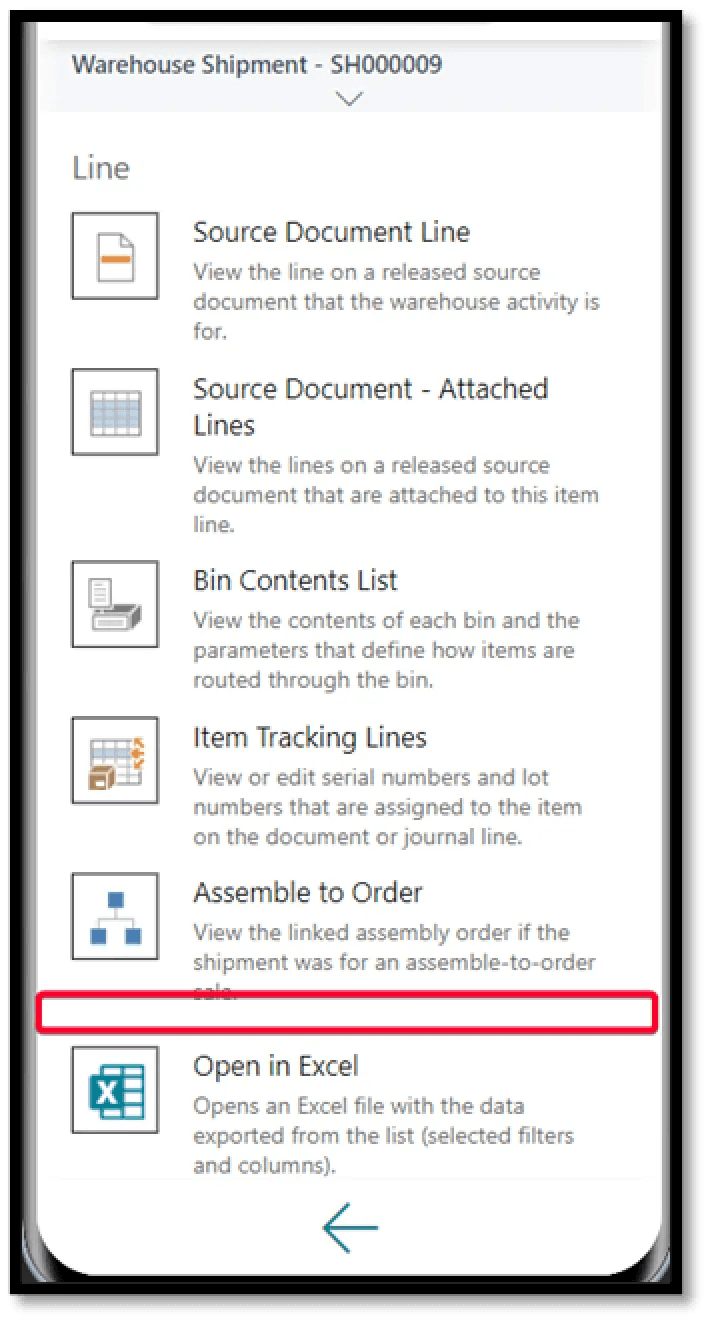
If the location does not require Pick, the button will be displayed. The scanning process continues in a similar way to the Warehouse Receipts.
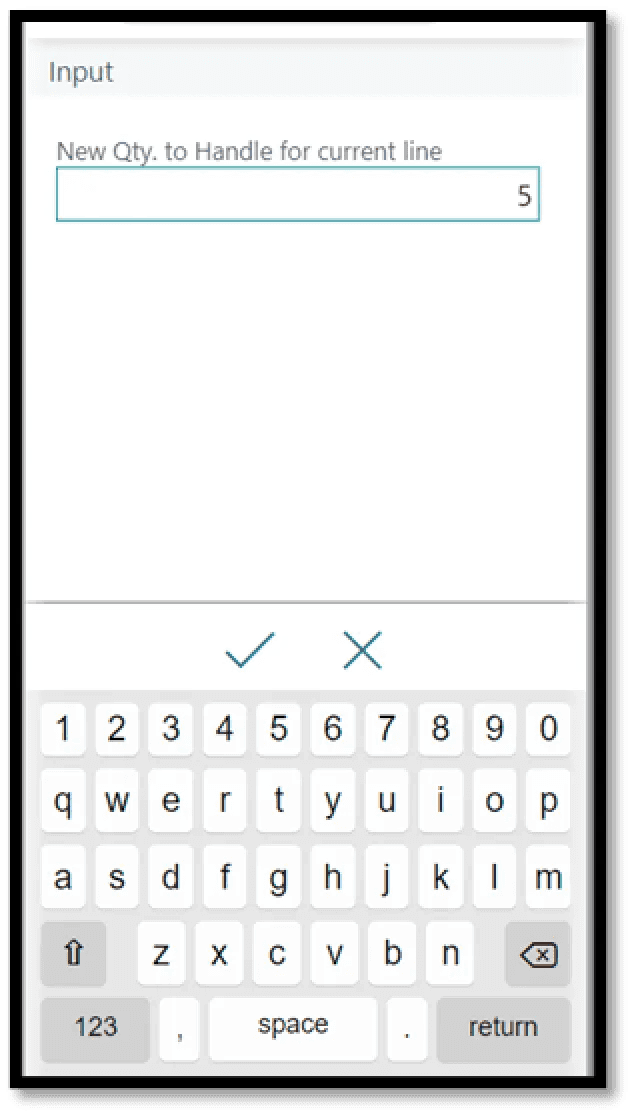
Warehouse Picks: On warehouse picks, the standard lines section is hidden on mobile devices and a mobile friendly section is displayed. It currently caters for the source documents Sales Order and Transfer Order. When a tracking no. is captured, the system will check the bin contents and assign the available quantity to pick. If there isn’t enough to cover the outstanding quantity, the split function should be used to scan a tracking no. from another bin.

Split function:
If available, the user can click the split button. This will prompt the user to enter a value for the Qty. to Handle field. Accepting the changes sets the Quantity on the current line to the same as the Qty. to Handle and creates a new line for the difference between the original Quantity and the new Quantity.
Set Qty. function:
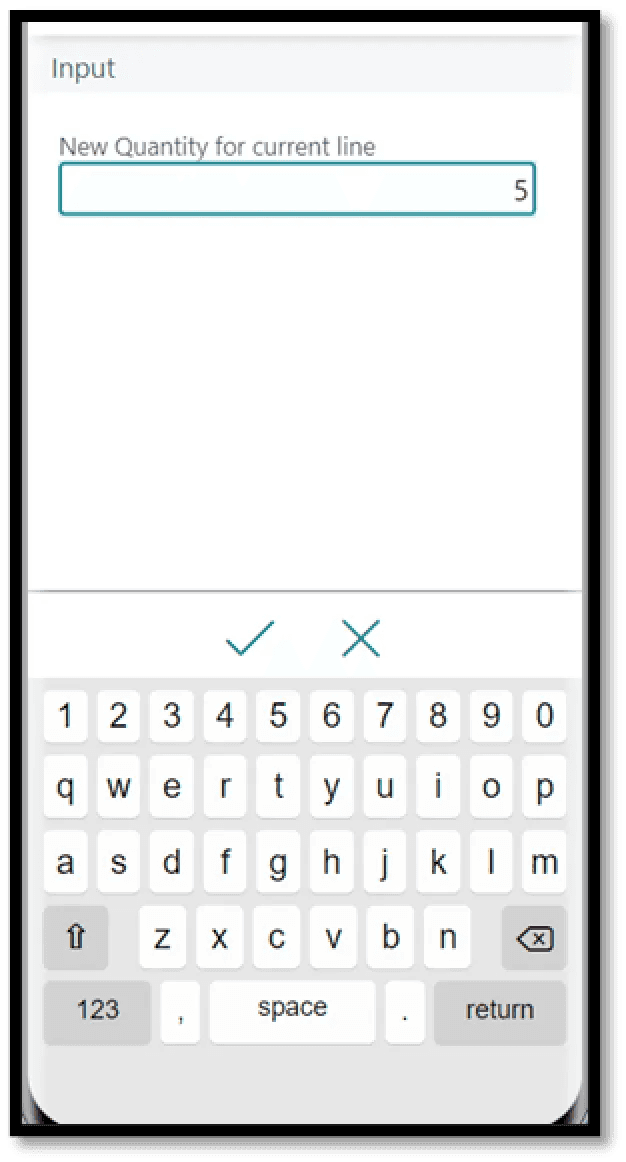
If available, this allows the user to capture a new value for the Qty. to Handle field.
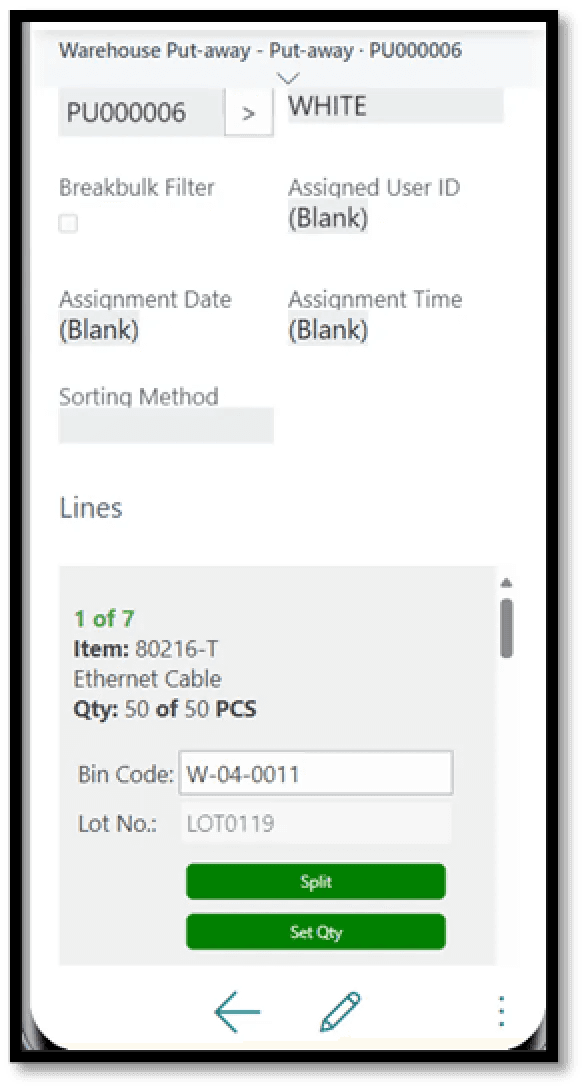
Warehouse Put-Aways: On Warehouse Put-Aways, the only field that can be modified is the Bin Code. Currently caters for source documents Purchase Order and Transfer Order.
Inventory Picks: Inventory Picks function the same as Warehouse Picks.

Inventory Put-Aways:
Inventory Put-Aways is function more-or-less the same as Warehouse Put-Aways, with the exception that it is possible to capture tracking information in addition to the bin code.

After capturing the tracking no. it will prompt the user for a Qty. to Handle. The default value will be the Outstanding Quantity.

Physical Inventory Recordings: On Physical Inventory Recordings, the standard lines section is hidden on mobile devices and a mobile friendly section is displayed.
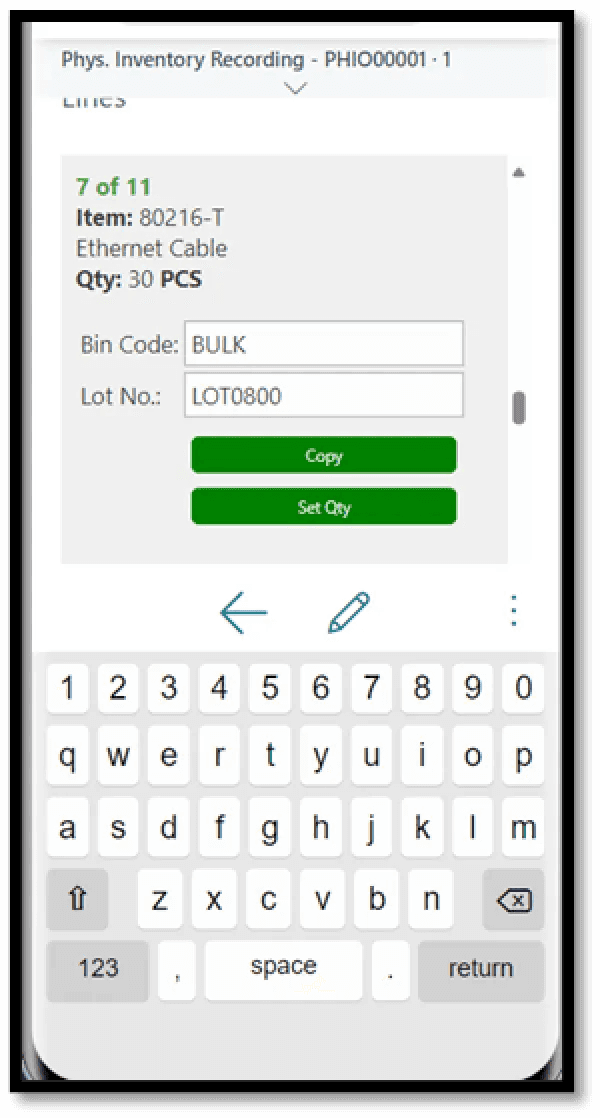
After capturing the tracking no. it will prompt the user for a Qty. to Handle. The default value will be the Outstanding Quantity. For non-tracked items, Set Qty. function can be used.
Need help with your environment?
Use your agreed Braintree support channel, or contact the team to confirm the right support route.
Contact Braintree
