
DOCUMENTATION
Setup and Configuration
Compliance Document Tracker
Configuration and Setup
Set up new Number Series
Search for No. Series
Create new number series for:
Statutory documents
Course Numbers
Training Tasks
Training Classes
Training document numbers (certificates)
Capture Setup fields
Search for Compliance Document Tracker Setup.


Capture fields for document management
Compliance Document number series - used to number entries in the Compliance Document Tracker table
Expiry warning period - a date formula which indicates how long before expiry you would like the system to warn you.
Capture fields for training administration:
Course number series
Training document number series
Class number series
Training job number (if integrating to Projects module)
Class No. Series - for identifying classes
Issuing Authorities
The organisations (including your own) that are responsible for issuing or certifying the documents you need to maintain are defined here. From the Statutory Documents Setup page, click on Issuing Authorities.

Capture the data as follows:

Code - unique code to identify the organisation
Name - full name of the organisation
Membership number - if you have a registration number with the external organisation, enter it here
Vendor number - link to a vendor to facilitate payment of membership fees.
Document Types
The types of document which your organisation needs to store, and the rules of how to manage them, are entered here. From the Statutory Documents Setup, select ‘Document Types’:

Capture the information as follows:
Field Name | Details |
|---|---|
Statutory Documents Code | A unique code to identify the type of document |
Issuing authority | Select the Issuing authority responsible for this document type |
Validity | If the document has a limited validity, enter a date formula to calculate the expiry date from date of issue |
Area of jurisdiction | Free text, indicating where the document is valid eg Global, National, Site |
Document importance | Optional / Recommended / Mandatory |
Duplicates allowed | If multiple editions of the same document type can be issued to a particular entity, tick on. If ticked off, the system will prevent you from capturing more than one edition of a document. |
Extension Period | |
Maximum Extensions allowed | |
Associated Entities: | Select the entities to which the document type can be attached: Customer / Vendor / Fixed Asset / Item / Resource / Service Item / Employee |
Entity Defaults
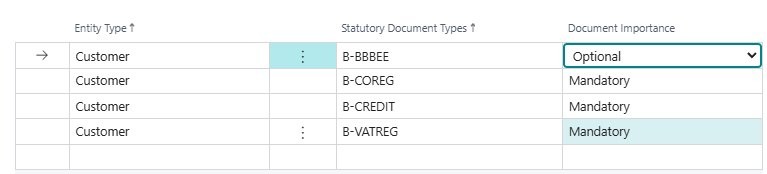
This function allows you to define the suggested list of documents that need to be collected for a particular entity. For example, for a new customer, you may want to collect their company registration, VAT registration, BBBEE certificate. From the Statutory Documents Setup, select ‘Entity Defaults’.

Enter fields as follows:
Field Name | Statutory Document Type |
|---|---|
Entity Type | Select from the available entities |
Statutory Document Types | Select the document type from the list |
Document Importance |
Repeat for each document required for the entity type. Example:
Training Programmes
This function allows you to define the outline of a training programme. Select ‘Training Programmes’ from the Statutory Documents Setup page. A list of existing programmes will appear. Click on New. Enter General information about the programme:

where applicable, enter Accreditation information:

This will link completed training for an employee to document certifications. Capture one or more modules / subjects that are offered as part of the course:

Training Subjects
This function allows you to define subjects on which you will offer training.
Link Skills to Certifications
Search for “Skill codes”.
Edit the list.
Next to each skill code, select the applicable certification.

Workflow Template
On installation, a workflow template code will be added to the setup page:
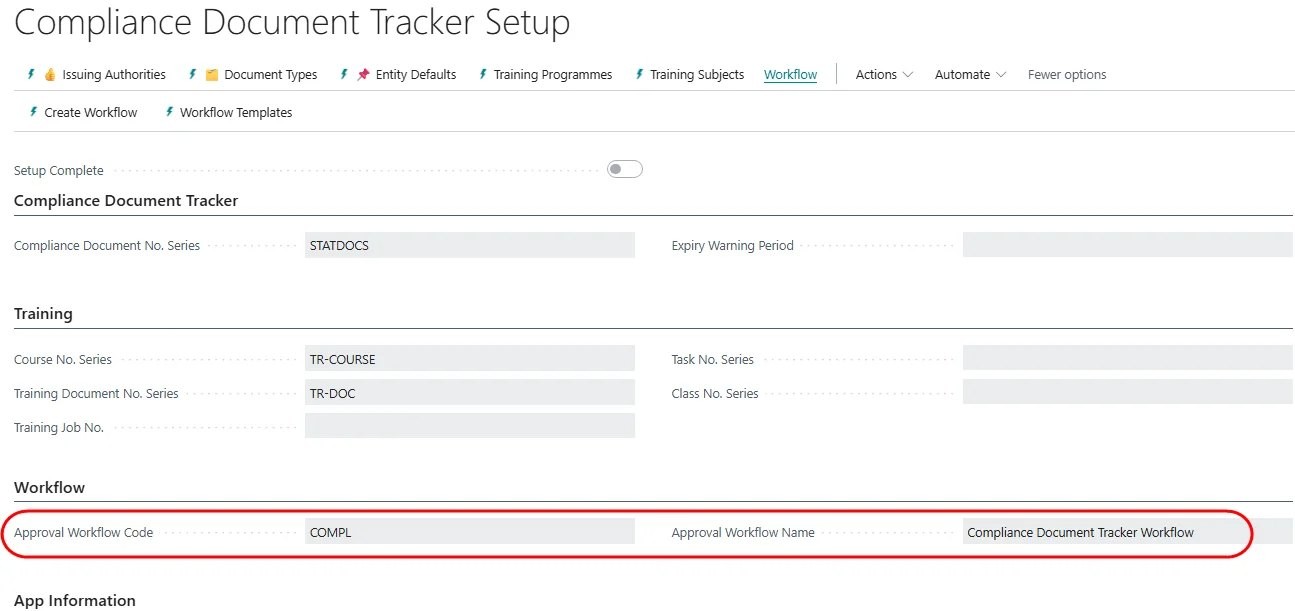
If you wish to use approval workflows, select the Workflow menu, then click on Create Workflow:
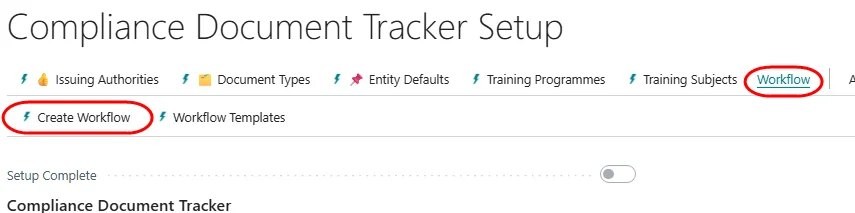
Go to Workflow Templates, and use the new template to create a workflow. Edit the workflow according to your business rules, and enable it.
Need help with your environment?
Use your agreed Braintree support channel, or contact the team to confirm the right support route.
Contact Braintree
